Videonics MX-1 Video Mixer Tips and Tricks

50 postsstarted by michaelfish 39,477 viewsoriginal topic

#1
The Videonics MX-1 video mixer is powerful and useful, yet inexpensive video and audio mixer. The manual's 80+ pages describe many features but few operators take time to read through them all. Although I've used this mixer for years, I just recently found some functions of the mixer did that I was not aware of. These may be of use to others for conferences.
  • Color Bars - very useful in adjusting the color on your monitors and TVs: Press COMPOSE, then press SHIFT and COLOR at the same time. The color bars will be displayed onthe PREVIEW monitor. To display them on the output, press PLAY. Press PLAY again to switch back to the current source. (Setting up a monitor)
  • More Preview Output Options: The Preview Output normally displays 4 video sources at the top 1/4 of the screen and wipe and effects patterns on the bottom. Another useful function of the Preview Output is to display the next video source full-screen so more accurate focus and composition adjustments can be made. To do this: press DISPLAY. The output of the preview will now be selected from the bottom 'next source selector buttons (ABCD)'. Another press of the DISPLAY button changes the output to be the same as the PROGRAM output. A third press of the DISPLAY button will return the output to the normal prewiew wipe and pattern screen.
  • Fully adjustable Picture-in-Picture (PIP): Both the size and position of the smaller picture can be controlled: hold SHIFT as you press ZOOM/P-IN-P. The arrow keys change the location of the rectangle while SHIFT ARROW-UP and SHIFT ARROW-DOWN changes the size of the rectangle. Use PLAY to perform a cut, use the Take T-Handle to perform a dissolve.
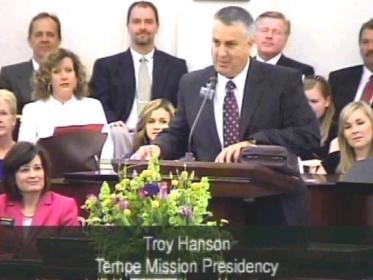
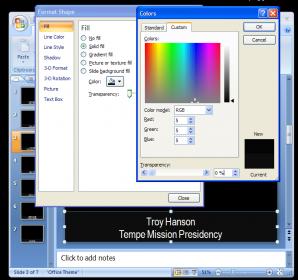
  • Hymn Text Overlay: Create with PowerPoint. Copy and paste hymn text from the church on-line library website. Use a black background slide and a couple of lines of white text at the bottom. The standard Arial font will yield good detail on the character edges. A professional looking see-through screen can be added by creating a 5% black fill box with no Line Color behind the text. This will also make the text more readable against bright camera backgrounds. The hymn text overlay is created with the Chroma-Key feature of the mixer: Make sure the Take T-Handle is either fully up or down. Select the main camera the top Take Bar (ABCD) and the PowerPoint video source with the bottom Next Source selector button (ABCD). Press COMPOSE, CHROMA KEY, OK (but allow a split second between button presses). Use the Take T-Handle to insert the hymn text over the main camera. Move the Take T-Handle only partially if you wish to screen the video through the 5% black box or move the Take T-Handle all the way to create a black background behind the text for better readablility over a bright video source. Remember to not change video sources during a chroma key or the PowerPoint overlay will be disabled. Chroma Key can also useful to superimpose a speaker's name and calling.
Senior Member
#2
michaelfish wrote:The Videonics MX-1 video mixer is powerful and useful, yet inexpensive video and audio mixer.

What would be a reasonable price to pay for one of these units on eBay?
#3
danpass wrote:What would be a reasonable price to pay for one of these units on eBay?
Over the past couple of years, used ones go for about $350 but to see how much they've sold for recently, click check out eBay to see what prices they're selling for.
Senior Member
#4
Thank you!
New Member
#5
We use the Videonix MX-1 for hymns text. When I use the chroma key I always get some noise at the edge of the screen. I'm setting up the channels the same way as you by selecting the video source in A and then setting the cut to D which is the PowerPoint input. The instructions tell you to just hit the Chroma key at that point which I do and hit ok when the cursor is over the color. After the first ok there is noise at the top and sides of the screen. I then hit shift and the up arrow to fine tune the chroma and the noise goes away and the text is clean. I'm using a grey background and white text.

What I don't like about this is that if I need to go to different cameras, I have to hit the chroma key to kill the chroma effects and then I can go to my other camera inputs. When I need text again for speaker name or hymns, I have to go through the chroma setup again. This can be difficult when you're doing it all on the fly.

Will your method of "Press COMPOSE, CHROMA KEY, OK" save the chroma settings so they will be used next time I need to go to chroma? Will the black background work better than the grey? I would love a copy of your PowerPoint so I can see how you set up your slides. Especially the black background behind the text. I have an online disk at public.me.com/flyboyscott where you could put the PowerPoint.

Greatly appreciate any feedback.

BTW. We picked up our Videonix MX-1 from ebay for $550. There were cheaper ones available but they had issues.
#6
flyboyscott wrote:Will your method of "Press COMPOSE, CHROMA KEY, OK" save the chroma settings so they will be used next time I need to go to chroma?

No. Pressing "COMPOSE, CHROMA KEY, OK" is a simple button sequence to initiate a chroma key. Selecting any new camera angle disables the chroma key settings. A solution would be to use a separate unit to perform a "downstream" key (the ability to key special effect after the output of the MX-1) but that would be an additional device. Professional special effects generators have this feature but there was a limit of how many features they could jam-pack into the $999.95 MSRP of the MX-1.
#7

Creating a PowerPoint for Chroma Key hints

flyboyscott wrote:Will the black background work better than the grey?
I found that the best color to select for MX-1 PowerPoint backgrounds is blue. Note however, if your laptop video border is black, this will decrease the size of the final picture (the black border is superimposed over your live video).

For that reason, I use black background fill for my PowerPoint slides which matched the laptop's black border. Then I use 5% black for the box behind the text and white for the text.
5-24-2011 4-41-37 PM.jpg
5-24-2011 4-41-37 PM.jpg (17.86 KiB) Viewed 12268 times


When performing the key, I move the T-Handle Take bar only partially, which allows seeing through video behind the 5% black box.
speaker.jpg
speaker.jpg (19.17 KiB) Viewed 12277 times


You may not be able to see it very well with this small photo I uploaded, but if you click on the picture to enlarge it, you'll see the red jacket and flowers are visible through the black text background.
#8

Videonics MX-1 Video Mixer --- Flashing Video Output

I'm hoping someone out there is familiar with the Videonics MX-1 video mixer and can tell me how to fix a big problem I'm having.

We can transition from camera to camera fine but erratically the video output will flash from intended image to black and keeps doing this. If it did all the time I might be able to figure it out while testing. But of course it only seems to do this when we are doing a live broadcast forcing me to quickly remove all video inputs on the fly attached to the MX-1 and transfer them back to an older mechanical switch.

Has anyone had this happen or know why this is happening so I can correct it?

My Video setup includes:
- Video Camera on input #1
- a computer on input #2
- another computer on input #2

- all video inputs and outputs are composite
- no audio is connected to this mixer (we use a separate sound mixer)


When I use a mechanical switch I can flip from camera to computer and back and forth without any problems. Its when I try to make things look professional, using the MX-1 with nice fades/transitions that I sometimes get the flashing video output from image to black, image to black about every second.
#9
Yes, I've had this happen. The solution was to disable the Frame Rate Lock to yield more exact frame rates. This is done in Advanced Setup. An explanation from page 25 of the manual explains why...
[INDENT]"Input/Output Frame Rate Lock Disable:This setting compensates for slight deviations in video frame rate between the inputs and the output. When it is locked (setting 0), the MX-1 adjusts the frame rate of the output by very small amounts at the end of each video field, to reduce or eliminate the need to repeat or drop video fields. This is the normal setting and is appropriate for most equipment"
[/INDENT]and continuing on page 66...

[INDENT]"If you are connected to equipment that requires very exact frame rates, you can change the setting to 1 and the timing of the output will be more exact and fields will be dropped or duplicated as required."
[/INDENT]

To change this setting, go toAdvanced Setup (Page 24)
[INDENT]Press the SHIFT and SETUP buttons simultaneously to alter the advanced settings. Arrow over to the lock icon and use the arrow up to change the value to 1. Press OK or PLAY when done.
[/INDENT]The source of your problem may be the unstable sync conversion of the computer image to composite sync signals. If your computer has a composite video output, try different Screen Refresh Rates (under display settings, settings, advanced, monitor). 60 Hz is what standard composite video uses.

If you are using a scan converter, experiment with the settings there. I'd look for and make adjustments to flicker, brightness and contrast. I've noticed a more stable picture coming off the scan converter when I adjust the brightness all the way down and contrast up a little more than default. Yours will be different, I'm sure.


With all that said, run a lot of tests before your next conference and try to make your test set up as close to actual as possible. We always run tests a week before the conference to iron out bugs such as what you mentioned.

Please let me know if this fixes your problem.
#10

Sample PowerPoint Template for Hymns and Text

If you're looking for a PowerPoint 2007 template for superimposing (keying) text and hymns with the Videonics MX-1 (and others), here is one we used from our last conference.

The file contains most everything needed for a conference overlay including:
  • Color bars to adjust monitors, TVs and projectors (see this link for instructions)
  • A few hymns (one verse) with dissolve between slides
  • Sample picture displayed for sustaining
  • Names of speakers and their calling
When used with the MX-1, text and hymns can appear screened (translucent) on the monitor by processing a chroma-key, but move the T handle only half-way (see the beginning of this post for detailed instructions). Moving the T handle all the way displays the text over a dark background for easier readability. We generally choose screened text except when there is a very bright background behind the words.
📎 General Session.pptx (177.01 KiB)
#11
Tried a another test today. Failed again even with the "1" added under the unlocked padlock in the advanced setting. The MX-1 output still wants to flash. It does seem that the flashing is when I'm switching to a computer input feed rather than a camera.

The computer output signal to the MX-1 is made by using a "Grandtec GXP-2000" unit that converts by using part of the VGA signal run through a convertor (like a "Y" cable) while also displaying the same information on the computer's monitor.

The Grandtec device provides an array of output options for connecting a TV such as: S-video out, Composite, and Component outputs. I'm been using the composite output of the Grandtec to feed the MX-1.

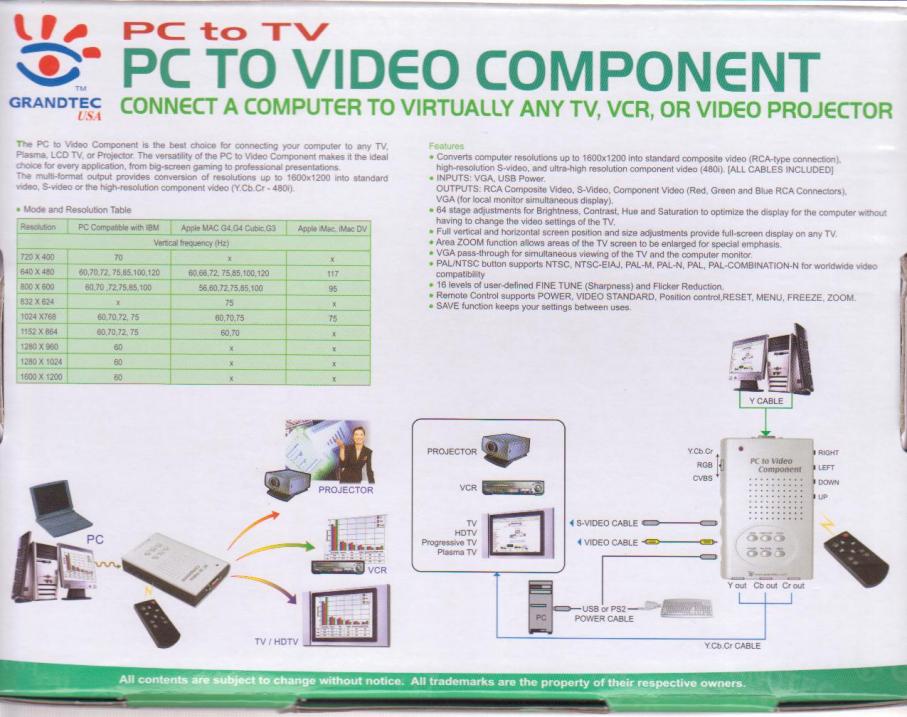
I don't know if this helps but according to the Grandtec manual these choices for VGA setting are supported by the Grandtec convertor:
720x400 @ 70Hz
630x480 @ 60, 70, 72, 75, 85, 100, 120Hz
800x600 @ 56, 60, 70, 72, 75, 85, 100Hz
1024x768 @ 60, 70, 72, 75Hz
1152x864 @ 60, 70, 72, 75Hz
1280x960 @ 60Hz
1280x1024 @ 60Hz
1600x1200 @ 60Hz

Video Standard Supported:

NTSC, NTSC-EIAJ, PAL-M, PAL-N, PAL, PAL-COMBINATION-N

Functions:
Fine Tune, H-SIZE, V-SIZE, Brightness, Contrast, Hue, Saturation, Flicker, OSD color & Save

Should I change something in the Grandtec or the computer?

Or is there something that I can add to the video signal to clean it to make the MX-1 happy? What confuses me is at first the MX-1 seems to play nice with the computer inputs, but after say 5 minutes or so it starts to act up and begin flashing the output. The computer itself shows a stable image on its monitor but the MX-1 output flashes when the computer is feeding it.

Any advice would be helpful as this is all new territory for me right now.
Community Administrator
#12
I'd try a different refresh rate on the computer.
Have you searched the Help Center? Try doing a Google search and adding "site:churchofjesuschrist.org/help" to the search criteria.

So we can better help you, please edit your Profile to include your general location.
#13
There are video stabilizers the can strip the sync signal and replace it, but the scan converter is supposed to do this. If the scan converter is not outputting a stable sync signal, I'd recommend upgrading the scan converter instead of applying "Band-Aid" fixes.

I'd suspect the problem happens only when you are connected to the computer's signal (poor sync), so let's start with that. Have you tried setting the computer to the 60 Hz scan rate? Here are some other suggestions:
  • Disconnect the monitor (don't split the VGA signal) - splitting video without a distribution amplifier decreases video signal voltages (and also the voltages of the sync portion of that signal). Voltages are critical for sync timing (where to put the picture element). If the video signal has been decreased by splitting the signal, it would make sense that the MX-1 would have issues...
  • Make sure you have high quality cables and good connections. Don't use thin cables, and make sure they are SHIELDED (reasoning goes along with the above)
  • Make sure everything is on before turning on the MX-1 or reboot the MX-1 (the MX-1 scans inputs)
  • Turn off the audio inputs on the MX-1 (through set up)
  • Cycle through and try differenct DISPLAY modes (display the Preview/Next Source/Program/Wipe Patterns on the preview monitor)
  • Is the power adaptor the original? If not make sure the specs state 12 volts A/C, 1 Amp
  • Various display settings and resolutions on the computer (I'd use 640x480 at 60 Hz)
  • Different computer and/or scan converter
  • Use the composite inputs (you are already doing this - I put this in for future readers)
  • Don't split any video signals (cameras, computers, players, etc.) Use distribution amplifiers
  • Turn off unused inputs on the MX-1 through set up
Please keep us posted on your progress. I've seen a lot of (non-LDS) posts with this sort of problem and the opinions of those posts is that their MX-1's are defective. I'm hoping that is not the case since this mixer is an affordable unit which has the right amount of features for Stake Conferences.

I hope we can find a solution...
Community Moderators
#14
Thanks for the detailed tips. It's great to have those who have been already pulled through the knothole help those of us still learning.
michaelfish wrote:
  • Use the composite inputs (you are already doing this - I put this in for future readers)

Just curious... Is there something wrong with using the S-Video inputs on the MX-1?
So we can better help you, please edit your Profile to include your general location.
#15

Just curious... Is there something wrong with using the S-Video inputs on the MX-1?
In researching, I found this post (see #11) from another website explaining his solution was converting S-Video to composite.

Although I have never had problems using the S-Video inputs on the MX-1, I put this in as a suggestion to try (no other reason than a suggestion).

From my experience observing other stake's use of poor quality cables and adapters, combined with the distance of cable runs, the loss of the quality of the signal could be an issue with the MX-1. In addtion, adding baluns increases the number of connections, so bad connections or possibly a poor quality balun could have possible contributed to the poster's problem. Going RCA all the way would eliminate bad balun connections or poor quality baluns.
#16
I took the suggestions of trying different internal settings in the Advanced menu of the MX-1 without success. I also tried to change the monitor settings to all 60Hz settings to no avail. I appreciate the suggestions; keep them coming.... The picture still flashes on the output from the Grandtech video converter (used to conver VGA signal to composite to inject into the MX-1 mixer) when using a computer as the source.

I did another test with good results which makes me think I may be getting closer to a solution.

- I remembered years ago there were Video Stabilizers designed to prevent a flashing recording on a copied VHS tape.
- I believe it was called removing some copy protection called macrovision.

Anyway, I picked up one of these filters and put it on the computer's video output signal (coming out of the Grandtec VGA converter) leading to the mixer's input. To my amazement the video stabilizer removed the flashing of the mixer's output. Everything looked perfect and clean.

My thinking in now that somehow there must be some flashing or inconsistency of the output from the computer (similar to the old macrovision encryption) that my eyes can't see and the MX-1 mixer is amplifying. When the video signal runs through the stabilizer though, after coming out of the Grandtech VGA to composite converter, no more flashing is experienced on the MX-1 output.

I called Grandtech (MFG of the Grandtec output device I'm using to convert VGA to composite) and they were baffled too. They talked about interlacing and some other things relating to how they transfer the VGA signal from the computer to composite within the Grandtec device. They are now suggesting that I try changing the video monitor settings to some of the 75Hz options to see if this works without the need for an extra video stabilizer circuit. They also indicated that the Grandtec device was designed to feed a TV and that the mixer may be more sensitive than what they anticipated the need would be. I'll try the 75Hz choices because I'd like to eliminate the need for adding additional video stabilizer circuits to the outputs from the computers.

If the 75Hz setting do not work, at least I have a band-aid work-around until I get this problem solved.

If anyone know some other tricks, send them my way...
Community Administrator
#17
JeffTurgeon wrote:I did another test with good results which makes me think I may be getting closer to a solution.[/B][/color]
- I remembered years ago there were Video Stabilizers designed to prevent a flashing recording on a copied VHS tape.
- I believe it was called removing some copy protection called macrovision.

Anyway, I picked up one of these filters and put it on the computer's video output signal (coming out of the Grandtec VGA converter) leading to the mixer's input. To my amazement the video stabilizer removed the flashing of the mixer's output. Everything looked perfect and clean.[/color][/B]
Interesting, since what I know of Macrovision is that it messes with the gain, not the timing. My best guess is that the output of the device is weak and/or doesn't match normal video levels.

You mentioned splitting the signal. Perhaps that's what's causing the problem.
Have you searched the Help Center? Try doing a Google search and adding "site:churchofjesuschrist.org/help" to the search criteria.

So we can better help you, please edit your Profile to include your general location.
#18
...just a suggestion. Perhaps you could borrow a different (hopefully better) scan converter and test it. If the problem goes away, consider upgrading the scan converter.
#19
michaelfish wrote:...just a suggestion. Perhaps you could borrow a different (hopefully better) scan converter and test it. If the problem goes away, consider upgrading the scan converter.
What would be better scan convertor than this unit? (On the cheap of course our current setup has 2 computers feeding the MX-1 images/video clips as well as the 2 cameras.)

The Grandtec worked well with the manual switch until I decided to go fancy and add a higher piece of equipment to the mix (the MX-1 video mixer).

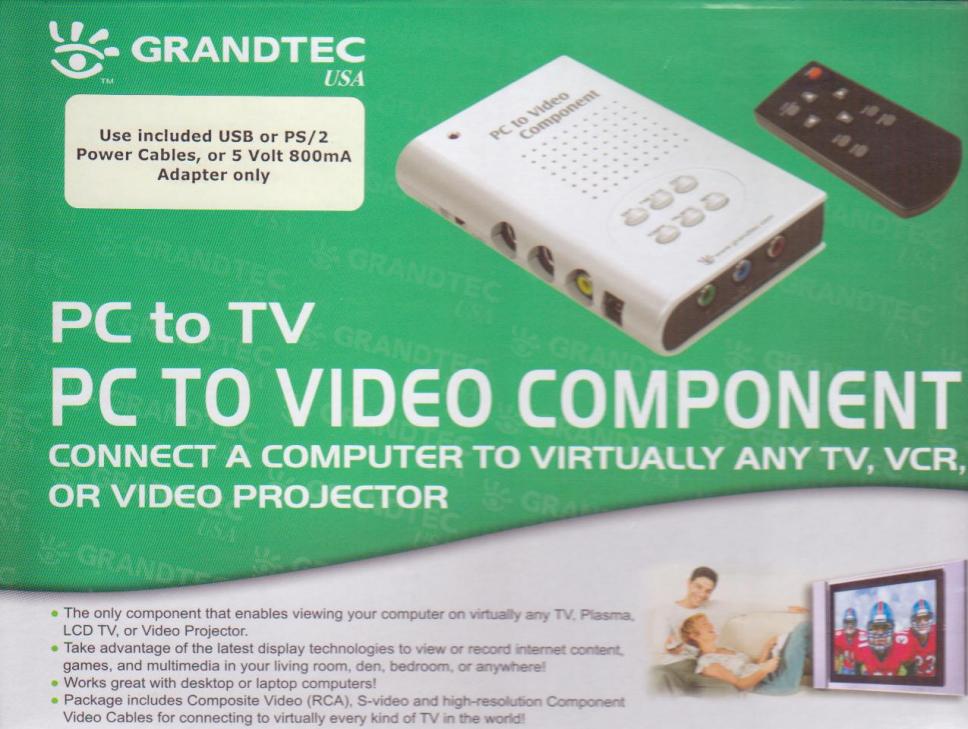
I thought the Grandtec units were good. They sure are easy for my crew to setup. The manufactures packaging said it "is the best choice for connecting your computer to any TV, Plasma, LCD TV, or Projector. The versatility of the PC to Video Component makes it the ideal choice for every application, from big-screen gaming to professional presentations. The muti-format output provides conversions of resolutions up to 1600x1200 into standard video, S-video or high-resolution component video (y.Cb.Cr-480i)."

Grandtec1.jpg
(94.42 KiB) Downloaded 500 times
Grandtec2.jpg
(94.69 KiB) Downloaded 500 times
Grandtec3.jpg
(91.59 KiB) Downloaded 499 times
This is a:
Grantec
Model: GXP-2000
- PC to TV
- PC to Video Component

As a test...
[INDENT] - What could I use to boost the output signal from the Grandtec to see if this was the problem?
[/INDENT][INDENT]- Do you think running it in and out of something like a common old school VCR would do the trick?
[/INDENT]
Community Administrator
#20
JeffTurgeon wrote:The computer output signal to the MX-1 is made by using a "Grandtec GXP-2000" unit that converts by using part of the VGA signal run through a convertor (like a "Y" cable) while also displaying the same information on the computer's monitor.

I think a couple of us have raised this issue - how is the signal being split? Are all the devices involved intended to be used this way? If done wrong, you could end up with a weaker signal.
Have you searched the Help Center? Try doing a Google search and adding "site:churchofjesuschrist.org/help" to the search criteria.

So we can better help you, please edit your Profile to include your general location.
#21

How sensitive is the Videonics MX-1 mixer when it comes to Video Input signals

RussellHltn wrote:I think a couple of us have raised this issue - how is the signal being split? Are all the devices involved intended to be used this way? If done wrong, you could end up with a weaker signal.
MX-1 from Grandtec.jpg
(103.52 KiB) Downloaded 1502 times
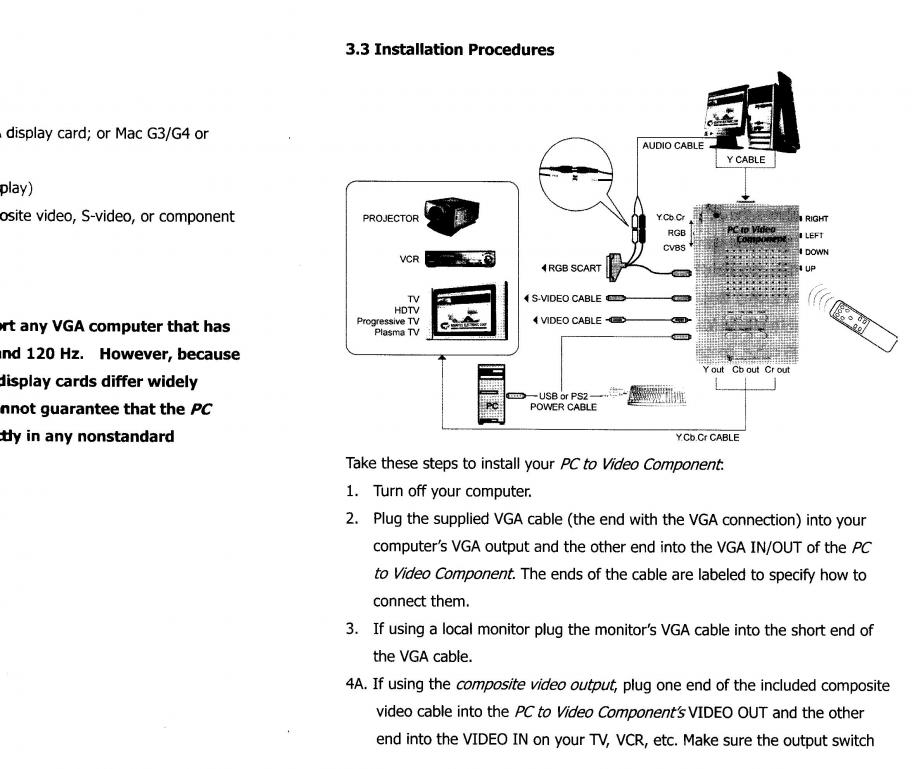
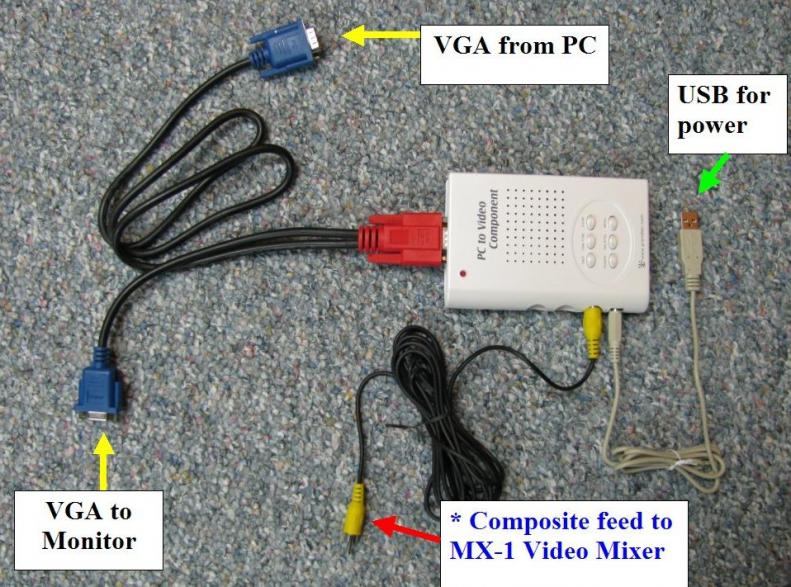
I've connected the Grandtec GXP-2000 exactly as the manufacturer instructed (see photo above).
1) VGA cable (long) connects to back of computer
2) Red Y-VGA connector goes to Grandtec converter
3) VGA cable (short) goes to monitor so you can see what you are transmitting
4) USB cable provides power from the same computer
5) Composite cable goes to a TV/Projector or in my case the MX-1 video mixer

The Videonics MX-1 can except composite video or S-video inputs. I am using the composite.

The Grandtec device can output composite, S-video, or component.

The Grandtec is powered by USB from the computer so the signal, I'm assuming-yes I know this is bad, should have its strength being regulated to some standard.

When I spoke to Grandtec on the phone they too wondered if the MX-1 wanted a stronger video signal. But what would I use to see if this really was the problem? That's why I'm wondering if feeding through a VCR would act as a video signal amp for me to test this theory.
Community Administrator
#22
JeffTurgeon wrote:The Grandtec is powered by USB from the computer so the signal, I'm assuming-yes I know this is bad, should have its strength being regulated to some standard.
I don't know if it's still true, but some laptops had "low power" USB ports. Meaning that they were unable to deliver "full power" to some USB devices, causing some of the more power-hungry ones to not work properly.

One thing you might do, is since you're saying the USB is just for power, perhaps you can power it from something else. Perhaps a cell phone charger.
JeffTurgeon wrote:When I spoke to Grandtec on the phone they too wondered if the MX-1 wanted a stronger video signal. But what would I use to see if this really was the problem?
Do you have access to a O'Scope?

JeffTurgeon wrote:That's why I'm wondering if feeding through a VCR would act as a video signal amp for me to test this theory.

Worth a shot.
Have you searched the Help Center? Try doing a Google search and adding "site:churchofjesuschrist.org/help" to the search criteria.

So we can better help you, please edit your Profile to include your general location.
#23
Your idea of using a VCR may work, similar to adding a video enhancer to remove and restore the video synchronization portion of the signal. Anything you can think of to help with diagnosis is on the right track however, the root of the problem will still be in the mix, so if you want to find out what is causing the blinking, I would recommend further research. Let's also not discount the fact that the MX-1 may be faulty too.

I personally think that the scan converter's signal is not up to the MX-1's requirement for proper synchronization (a VERY significant signal needed in order for the MX-1 to do its job correctly). A video signal is a combination of many different kinds of signals (B/W picture, Color information, Synchronization information, Color timing signal...just to name a few) and they are all put together (thus "composite" video signal) that totals only 1 volt peak-to-peak. The portion of the signal that is most important to mixing video signals is the lowest 0.0 volts to 0.75 volts IRE (in a good signal). Among the many things that can cause problems with that portion of the signal are; long lengths {1) VGA cable (long) connects to back of computer}, a Y cable spitting the signal {(2) Red Y-VGA connector)}, radio frequency interference (RFI) {many VGA cables are not shielded}, etc.

In either case, the Grandtec manufacture states it works great with any TV, Plasma, LCD TV, Projector, but they did not mention video mixers. Video mixers must synchronize two or more video signals oscillating at 3,579,545 cycles per second from a voltage about 1 tenth of a volt, which is QUITE A TAST. There are no consumer TV's, Plasmas, etc. that mix two video sources, thus the video synchronization standard of the Grandtec does not have to be as perfect as what the MX-1 may require.

Since there is a lot going on, professionals use devices such as time base correctors (TBC) and yes, expensive scan converters, costing hundreds to thousands of dollars, in order to produce what the MX-1 does, only they do it better. The MX-1 is about the lowest quality there is on the TBC-assisted-video-mixer-scale and was never designed to synchronize computer VGA signals. It uses S-Video or composite video. That is why a scan converter is needed - to take a video graphics array (VGA) and convert it into a composite video signal. Computer's graphics are not based the National Television System Committee (NTSC) signal, and thus an intricate conversion must take place. If the MX-1 is fed a video signal is not just right...well, hopefully I have described why there may be issues such as what you're describing surface.

I'd like to help. If I were you, I would start at the most basic and cleanest set up (short cables lengths, only one or two devices connected) and look for problems. If everything is OK, add a device and test again. It's a pain, but continue until the problem resurfaces. Then replace the last component added and retest. Does the problem go away with the replaced device? If the problem goes away, great. You've found what needs to be replaced. If the problem resurfaces, try eliminating one device or cable and test again. Hopefully you will be able to narrow down the culprit and find a solution.

Try this: How does the MX-1 test with only 6' shielded cables (camera to MX-1, 6' VGA to the scan converter, 6' shielded cable from the scan converter to the MX-1), no splitting of wires, and a different scan converter?
New Member
#24
H,

I was wondering if you know a way to make the multiviewer screen jsut the 4 channels of video. I don't have any use for all the wipe effects and I'd rather use the whole screen to just preview all 4 channels of video
#25
Unfortunately, there is no way to do this on the MX-1. It was not an included feature. Don't give up though. You have options...

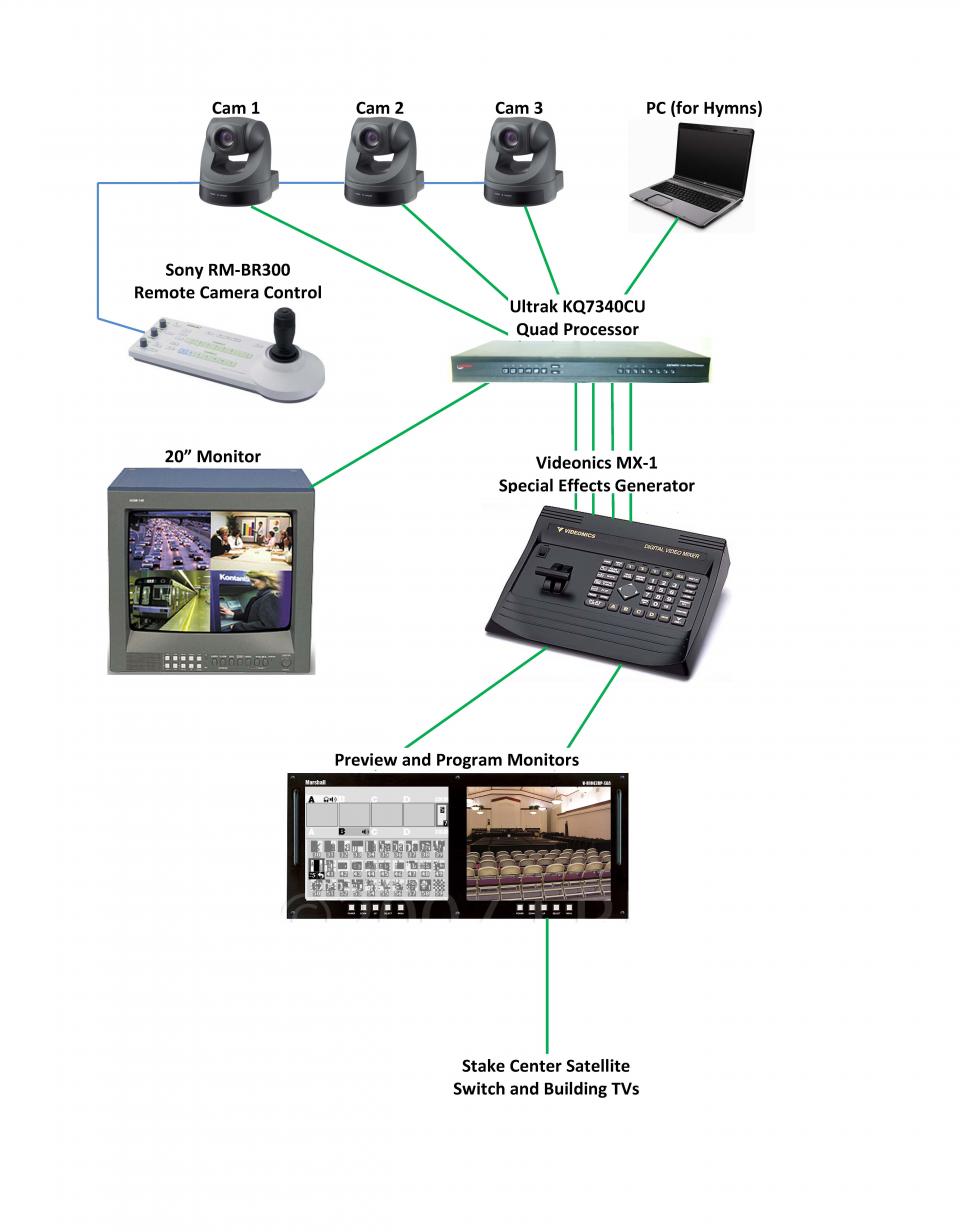
In order to monitor 4 video inputs of the MX-1, try using a quad splitter such as the Ultrak KQ7340CU. Used ones can usually be purchased off of eBay for about $20 - $30. The KQ7340CU is a professional digital video processor which has loop through video outputs for all channels so the cameras can feed through it and then loop out to the MX-1. I use a 20" monitor so when the pictures are split into 4, they're about 9" each. You can also select a single video input and display it full screen.

Wiring diagram:
Multicamera Wiring Diagram.jpg
(84.2 KiB) Downloaded 1513 times

Another option could be to use the MX-1 preview output to display the "Next-Source ABCD" selection instead of the quad/wipe-patterns screen. Although this only previews one camera at a time, you could use it to display any Preview video source (full-screen). Just set up the MX-1 by pressing the Display button until the preview ouput jack shows what is selected on the bottom "Next-Source" bus. The display feature toggles from Quad/Wipes to Preview output to Main output. Pressing any of the ABCD buttons on the bottom previews that camera on the preview monitor.
New Member
#26

MX-1 with a projector

This is an amazing thread. We just had stake conference, and I wasn't able to use my new MX-1 because I did all my testing with normal televisions. When I hooked the mixer up to the projectors we use for stake conference, I got lots of jittering on the top 15% of the screen. So any of the televisions and monitors I used worked fine, just not our stake projectors.

I got the mixer here in town used for $150 with a monitor and a custom-build road case.

I was googling today to try to figure it out and I came across this thread. I'm going to try some of the things mentioned here, but the big difference for me is that my inputs are 2 video cameras and 2 DVD players. There are no digital inputs at all. There are 3 projectors in our stake centre and I webcast to 2 towns in the stake.

Any ideas about that would be great, but maybe I should start a new thread. If that is preferable to people, I'll start a new one and post the link here. I'm hoping to catch the attention of all of you who are using this mixer. I love it and I was disappointed I couldn't use it this weekend. Thank you.
#27
First, great price on the mixer...and it included a monitor and custom case! Anytime I find those kind of deals I'm always worried something may be bad. I hope you can find a solution.

It sounds to me that the projectors need a more stable signal than the TV sets. I have had the same problem but it was caused by our PC's capture device. We had to go through several different capture devices to solve the problem. I also helped other stakes in my area, and they had flagging of the picture and artifacts due to splitting of the video cables (instead of using video distribution amplifiers) and using the thin RCA cables.

Is the power supply the original? The unit requires a 12 Volt A/C, 1 Amp power supply.

May I suggest a couple of things to try?

Start with the bare minimum and use the best quality, short length cables/connectors. Connect only one input and the projector all by itself. Don't use any splitters and use good quality, thick video cables. Keep the cables short, so bring the equipment together in the same room. Experiment with other video sources as well (live TV/Satellite, etc.) If the problem is still present, go to the advanced setup settings (SHIFT-SETUP). Try changing the value of the Frame Rate Lock Setting (2nd), Noise Filter (3rd), Black Level (4th). The Headphone Volume (1st) and Composite Chroma (5th), won't help your situation. Some of the adjustments are independent of any other source, so you may need to adjust additional sources (as you add them).

Remember, any settings are reset if the unit it powered off.

If you do not have success, try adjusting the settings on the projector. Sometimes pushing settings to extremes can over-process the signal and cause other circuits to go whacky (especially SHARPNESS and CONTRAST). Does it happen with every projector? Are all of the projectors the same make/model? Are they old? Experiment with other projectors (if you have access).

If you cannot get the problem to go away, I'd suspect something is wrong with the MX-1.

If you have success, then add one source and try again. Repeat until the problem comes back and then try swapping the order of the inputs connected on the back. Since the time base corrector (TBC) locks a second signal with the first, the second TBC will sometimes not work properly when the first source's signal is unstable or weak.

Another possible solution could be to connect and run the output of the MX-1 through a video stabilizer.

Hope this helps...
#28
Thank you for this conversation. I am having the same flicker problem on the upper third of the picture when I output from the MX-1 mixer through a Grass Valley (canapus) ADVC110 analog to digital video converter. You mentioned in a post that you had to experiment to find a converter that worked with the MX-1. Can you tell which product(s) you ended up using. Thank you very much.
#29
For capturing video and audio, I use the Roxio Easy VHS to DVD USB dongle (about $50). I've used this on about 6 or 7 PC's with success although sometimes there have been problems getting the capture program to switch inputs, but selecting another input and going back to the Roxio usually works. When that doesn't, I pull the USB dongle out and plug it back in again. I use this device almost every week to record the talks (audio only) via the hearing impaired receiver and the quality is excellent. It also works great with the webcast communicator with no audio sync problems (audio and video).

BlackMagic Design's line of BlackMagic Design Instensity Procapture devices are also excellent and many on this forum have recommended their internal card.

For more information, check out this thread devoted to finding capture cards that work: Webcasting Video Capture Cards that Work
New Member
#30

Re:

scottperkins4@gmail.com wrote:Thank you for this conversation. I am having the same flicker problem on the upper third of the picture when I output from the MX-1 mixer through a Grass Valley (canapus) ADVC110 analog to digital video converter. You mentioned in a post that you had to experiment to find a converter that worked with the MX-1. Can you tell which product(s) you ended up using. Thank you very much.
I think I just figured it out tonight. If you hold down the shift button and then press "setup" you can change a parameter represented by a padlock. Change the "0" to a "1". All flicker is gone. I got the information here: http://vjforums.com/showthread.php?t=14817

I found another thread here on the LDS forums talking about other side-effects of turning on that lock parameter, but I tested for about 45 minutes tonight and I didn't see the problem. I'll be using it live tomorrow morning so I'll see. If it fails, I'll have to quickly flip back to my old push-button selector.
#31
I wanted to follow up. The flicker cleared up for me when I changed the frame lock to 1 instead of the default 0. We have to do it every time you start up the M1, but it works fine now. Thank you.
New Member
#32
Have you seen any other issues since you've made that change? The mixer seemed to kick out for me yesterday about 1.5 hours into a 2 hour meeting. None of the lights changed on the machine itself, but it seemed to go out and then back in, so I lost video for about 5 seconds. The screens just went black. I immediately checked the advanced settings and the frame lock setting had reverted to 0.

Despite this, I'm going to use it for stake conference in 2 weeks, so I'll see how it goes.
#33
We had this problem (video off/on flashing) and followed numerous suggestions here and around the web adjusting settings, upgrading the power supply, etc. and none of them worked. After continuous testing we found that there had to be some kind of difference in regards to the sync signals of the various cameras/computer video feeds.

Having only 1 video source at a time connected to the mixer worked fine but when multiple inputs were tied in to the mixer the problem would randomly pop up. I bought some good stabilizers and after placing 1 on each input video signal the problem never happened again. We were able to find some on eBay from $15 to $35 a piece.

If you want I can try to find the model we used and post a pic. I would suggest using the exact same model stabilizer on each video feed.
New Member
#34
If you wouldn't mind digging up the model you used, I'd really appreciate it. If you can find them, I'll order some today. I was wondering if the problem might have been because of a weak signal from one of our cameras. Thanks for that response.
New Member
#35
Just confirming that changing the lock from zero to one eliminates the flicker for me as well.
#36
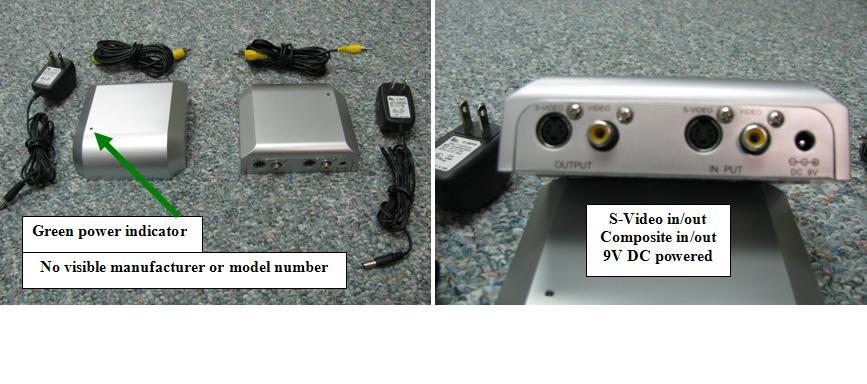
I tried to find a model number but was unsuccessful. Attached is a picture of two of the units we used.

I found one on eBay but the price they want is high.
http://www.ebay.com/itm/Digital-Video-S ... 2a245da7a7

If you keep an eye out you may be able to get a better price. You may also wish to try another video stabilizer.
📎 Video Stabilizer.JPG (57.68 KiB)
New Member
#37
Thanks a ton. That gives me a good idea of what you're talking about. I'll try to track some down. I'm pretty sure I only have 2 video inputs for this upcoming conference.
#38

Flashing Video Solution

This past week I diagnosed a Videonics MX-1 flashing video problem for a neighboring stake and perhaps my findings may help someone.

For those that have experienced flashing video from the MX-1, it is most likely caused by sub-standard video signals. Cables can be too long, too thin, split with “Y” adapters, have bad connectors, or because cable adapters have been added. In addition, the video signal from your video device may be too weak or substandard. The result is that you may experience the “flashing black” video output. The MX-1 needs very good signals to work properly.

If you experience problems, try to diagnose which video source is the cause by reconnecting inputs on the MX-1 but leave one video source unplugged and reboot the MX-1. If the picture is stable, the input you left unplugged is probably in need of a better quality cable, shorter length, improved connection, no cable adapters, etc. You may try testing with the cameras and other video sources right next to the switcher (short wires) and judge results.

What I found:
The cause of the Stake’s flashing problem was that their Sony EVI-D100 camera run was over an old 100+’ RG-59 cable, fitted with F to RCA adapters, and the wire had been exposed to water and moisture over the years. Since we didn’t have time to replace the cable, I switched inputs 1 and 2 so that the best camera signal (and the shortest cable) was on input 1, and the flashing stopped. When input 1 was switched to a professional video camera run with a new RG-6U (65’) cable, and the old cable was switched to input 2, the problem disappeared. It appears the Time Base Corrected needs the best video signal on input 1.

Another big culprit is a cheap VGA to Composite computer video Scan Converter. These units (less than $50) do not have superior video signals but I have found an inexpensive solution.

The Extron company manufactures a line of professional VGA and MAC scan converters which have very stable video signals. For the price of a new “cheap” scan converter, you can purchase a good, discontinued, used professional scan converter made by Extron. Search eBay for "Extron VSC" and look for a model VSC-50, VSC-75 or VSC-100. I just purchased two VSC-100’s for $50 and I am getting rid of the “cheap” scan converter I purchased new. The difference between the models are added serial control or component outputs however, they all have a standard composite video output (on a BNC connector).
#39
Okay, I had a blinking problem on another stake's MX-1 and thought the mixer was defective so I brought in another MX-1, only to find the same problem, but I was able to fix it. This is what I found.

When I disconnected or switched around inputs, blinking stopped and would sometimes come back when I plugged in all of the cameras. Since the baluns used had luminance gain controls, I was able to completely correct the blinking problem by adjusting the gain of the balun (was too high). This supports the theory that if the video signal is substandard (over amplified, weak, cable run too far, too much interference in the line, bad cables etc.), the Videonic MX-1 mixer's output may blink.

High quality cable runs and/or baluns are a must! I recommend using baluns which have the ability to compensate for long cable runs. The Extron company manufactures high quality baluns with gain adjustment control.
Community Administrator
#40
michaelfish wrote:This supports the theory that if the video signal is substandard (over amplified, weak, cable run too far, too much interference in the line, bad cables etc.), the Videonic MX-1 mixer's output may blink.
So the question is, how can you adjust it for the optimal signal (and minimum chance for blinking)? Scope it with a o'scope to set the signal strength? Otherwise, it seems the only other way is to find the points where something bad happens and pick a spot in the middle. However, it may or may not be in the optimal zone.
Have you searched the Help Center? Try doing a Google search and adding "site:churchofjesuschrist.org/help" to the search criteria.

So we can better help you, please edit your Profile to include your general location.
#41
You're right. But since most of us do not have access to the necessary test equipment, I had to do this the old-fashioned-way...watch the monitor and adjust until the blinking stops and then fine-tune the control for best picture, and TEST, TEST, TEST and TEST some more.

When testing, we were getting some flagging on one projector but when we set the Video Lock to 1 (shift-setup), the flagging stopped.

BTW, I now just go back from their conference and the results were flawless!
New Member
#42
Just wanted to say thanks to the input on this thread. I was able to pick up one of these mixers for $50 off of KSL about a year ago. After replacing the power supply we have had great results. It's old technology, but solves the problem.

I have attached links of screen shots of our stake conference this past weekend. We are lucky to have a member of the quorum of the twelve apostles as a member of our stake. :)


http://i.imgur.com/w9cWf5b.jpg
http://i.imgur.com/8UFVs9Z.jpg
Eric Anderson
Lead Java Developer
Stake Technology Clerk
#43
Awesome!
New Member
#44
I've also used the MX-1 mixer for stake conferences and for streaming a live multi-camera feed to remote locations for stake conference. It will do all the things mentioned by others. One thing I would add is that you can add a TM2000 Titlemaker CG unit downstream of the MX-1 for adding titles, borders, etc. You can do it on-the-fly, so there is no extensive up-front time required to build titles and text. If they change speaakers, hymns or prayers you can add them on-the-fly. It has a preview output, as does the MX, so you can build offline, then 'play' the CG live.

Both units are available on ebay still. I just had our school get the MX-1 and the TM2000 for use in streaming of school events, and I believe they paid well under $250 for each. I own one of each and use them for remote multi-camera field shoots. The usual tips apply; use only 75 ohm cable for the video feed. My personal preference for audio is to use an external audio mixer. Behringer makes some very inexpensive mixers that work verry well for these types of shoots. For miking, I take an audio feed from the chapel sound system and if a choir is going to sing I put up a large diaphragm condenser mic. The Behringer has phantom power, so it can drive any condenser mic. I have found that the ADK A51 mic is very adequate. It performs right up there with the more expensive mics, and it gives you an acceptable "panic" audio source if someone on the stand shuts off the podium mic during a choir number (yes, I learned that one the hard way..) Pro audio toys has them for a very reasonable rate.
Definitely download user manuals for the videonics products to get the full use out of them. Here are some links to a source for free downloads for these products
http://www.lu-hilson.com/PDF/Videonics% ... Manual.pdf (MX-1 manual)
http://www.lu-hilson.com/PDF/Videonics% ... Manual.pdf
(TM2000 manual)
I've used both the s-video and the composite inputs, and mixed them (some s-video and some inputs composite) on the same live stream. for internet, the Videonics have plenty good quality.
I've also run across that converter issue w/ some VGA converters. Some converters sync rates are compatible, some aren't. Some can be used for 20 or 30 seconds before losing sync, so you can sometimes work around it. It's a good idea to have a camera ready to shoot the screen if it's a possibility.
I worked for 9 years as an audio/video engineer at a public access TV station, and these units are very robust for the price, and very capable of handling church A/V needs.
There are other solutions out there, but they are usually more expensive, and there aren't nearly as many still available.
New Member
#45
I need some help. I speak Portuguese and so forgive me if you have errors in writing or syntax.

I have a Videonics - MX1 and use the channel 4 a computer connected to the VGA cable to an RCA converter. (VIDEO CONVERTER VGA TO VIDEO RCA ) . However 've used various configurations changed from NTSC to PAL -M , have used S -Video cable , and the image still Black and White .

When I connect the drive directly to the TV works perfect , his image has great quality .

When I use a black and white image as an example of the slide that was posted here the picture is perfect . However, when color image is shaky . Just a horrible quality.

On another computer with an older video card use an S -Video cable direct the board and colorful works normally , but for this computer with Geforce GT 630 card can not.

I thank to all who help .
#46
My first concern is to assume the MX-1 was defective or not set up correctly - but you said...
On another computer with an older video card use an S -Video cable direct the board and colorful works normally
My assumption is that the computer with Geforce GT 630 or your scan convert is not outputting a signal stable enough that the MX-1 can process. The timing of a video and color signals is very critical and must be a high standard for the MX-1 to mix properly. A quality scan converter must be used to convert a computer's VGA signal to Composite (RCA) video.

There are two settings on the MX-1 which may help with your problem.

From the Operation Manual:
Input/Output Frame Rate Lock Disable: This setting (explained in detail in Chapter 18, “TBC”) compensates for slight deviations in video frame rate
between the inputs and the output. When it is locked (setting 0), the MX-1adjusts the frame rate of the output by very small amounts at the end of each
video field, to reduce or eliminate the need to repeat or drop video fields. This is the normal setting and is appropriate for most equipment. The ABCD buttons have no effect on Frame Rate Lock Disable — it affects all sources at once.

How to Turn Frame Rate Locking On and Off
To change the Frame Lock Disable Setting, press SHIFT and SETUP at the same time to enter Advanced Setup mode (Chapter 5, “Setup Screen”) and change the setting. “1” disables locking and “0” turns locking back on.
The Frame Rate Locking icon is the second from the left.

The other suggestion is the Chroma AGC setting (press SHIFT and SETUP buttons simultaneously, the Chroma AGC icon is the last one on the right. Use the ARROWS left and right to move, up and down to change)
Composite Chroma AGC: If a composite (RCA-style) input source has a weak color signal, the Mixer can be set to compensate. If a composite source
looks pale, set the Composite Chroma AGC setting to 1 and the AGC (Automatic Gain Control) will automatically adjust color levels on all composite inputs. Most sources have correct chroma levels and we recommend you leave this setting at 0. AGC does not affect S-video sources. You can adjust chroma AGC for each composite (RCA-style) source. Note that if the Setup screen shows that a source is set to use the S-video (Y/C) jack, the AGC setting will not change
Note: these settings will change back to their default values when the power is turned off, so you will need to change them every time the unit is turned on.

If neither of these suggestions work, you will need to use a higher quality VGA to Composite Video Scan Converter (Video Converter VGA to Video RCA).

I had to go through several scan converters before finding one that worked well. I recommend one from the Extron company.
New Member
#47
Thank you For Tips . I will test the settings.

But from what you told me , you should probably be the same converter . And the converter Extron , I will try here in Brazil, but I believe it is hard to find .

I will put here on the forum the results I get .

All have a happy 2016 .
Community Administrator
#48
From what I'm reading, Brazil uses PAL-M, not NTSC, so that converter may not be the right choice.
Have you searched the Help Center? Try doing a Google search and adding "site:churchofjesuschrist.org/help" to the search criteria.

So we can better help you, please edit your Profile to include your general location.
New Member
#49

PC Input to Videonics MX-1 Video Mixer Dropped

I hooked up a Windows 10 PC laptop computer to the MX-1(PC VHS output to converter to MX-1 s-video on input D) to do the PowerPoint text overlay described on the start of this forum. Everything was working ok during the live session, but after awhile the signal dropped. I no longer saw D as an input and was no longer able to add the text overlay to the camera video. After the service, I experimented with the PC and the mixer and was no longer able to establish a connection. It is as if the PC is not sync'd with the MX-1. Any suggestions on why the PC input was lost and how to prevent it in the future? Should I set PC display resolution down to 640x480? Should I buy a better converter like the Extron VSC 100 someone suggested?
#50
I would first test both the PC and MX-1 to see if the PC output still works on a TV, and another source will work on the MX-1. Assuming that all works, then experiment with the PC resolutions. It's possible that the PC video is in Progressive Scan mode. The NTSC video input on the MX-1 needs to be Interlaced. Try 720x480i (Interlaced) at 30 Hz (Refresh rate)