Windows Local Accounts not available

27 postsstarted by drepouille 10,828 viewsoriginal topic

Senior Member
#1
I was very surprised when I tried to login to the Clerk computer today. The only Windows accounts available for login were Clerk and Other User. I had previously created (and used) three Windows local accounts: Repouille (Admin), Stake (Admin), and Other (Standard user). But none of those are available for login purposes. When I login as Clerk (Admin account), I can see all the accounts I had created under "Family & other users". I just can't use them to login.

As a workaround, I used the Clerk account to add my usual Microsoft account to the PC. The first time I attempted to login to my Microsoft account, the display went blank, and the PC refused to wake up. (Similar to what happens when a new display driver is installed.) So I waited 10 or 15 minutes, then pressed the power button, which caused an orderly shutdown. After the next boot, I was able to login to my Microsoft account.

Strange things are afoot!
Dana Repouille, Plattsmouth, Nebraska
New Member
#2
We have had the same issue with the Microsoft account and local accounts.
The local accounts are still there but for some reason need to be accessed using the ".\username" option. (this will log you into the local accounts)

This has taken us by surprise as well.
Community Administrator
#3
drepouille wrote:When I login as Clerk (Admin account), I can see all the accounts I had created under "Family & other users". I just can't use them to login.
That would suggest they've been deactivated. I'd suggest using Computer Management to check the user accounts rather than the feature limited function in control panel.

grahamhe wrote:The local accounts are still there but for some reason need to be accessed using the ".\username" option. (this will log you into the local accounts)
It sounds like the computers have been added to a domain. The ".\" forces the computer to look for a local account. If you leave it out, it will default to looking in the domain.
Have you searched the Help Center? Try doing a Google search and adding "site:churchofjesuschrist.org/help" to the search criteria.

So we can better help you, please edit your Profile to include your general location.
Senior Member
#4
I just ran compmgmt.msc on my personal laptop. Computer Management does not appear to list any user account controls. Perhaps my Windows 10 Home doesn't allow that.
Dana Repouille, Plattsmouth, Nebraska
Community Administrator
#5
drepouille wrote:Perhaps my Windows 10 Home doesn't allow that.
It doesn't on "Home" machine either. But it will be there on "Pro" and above - which includes church machines.
Have you searched the Help Center? Try doing a Google search and adding "site:churchofjesuschrist.org/help" to the search criteria.

So we can better help you, please edit your Profile to include your general location.
New Member
#6
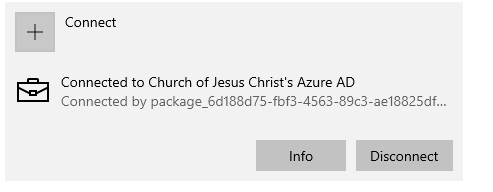
If you look under "Access work or school" make sure that there is not a connection to the church AD in there.
There was one on my clerk computer. once removed the system was back to normal with all the local accounts available
Work or school account.PNG
Work or school account.PNG (6.18 KiB) Viewed 6413 times
Community Administrator
#7
If you disconnect, will it reconnect?

I just set up a new computer for a ward. It used to behave normally, but then I made a minor change to local groups policy and after a reboot, it suddenly required me to all .\ to the user name. I did verify it wasn't part of a domain.
Have you searched the Help Center? Try doing a Google search and adding "site:churchofjesuschrist.org/help" to the search criteria.

So we can better help you, please edit your Profile to include your general location.
Member
#8
Any ideas as to how the computer(s) got connected to the Church AD? I just had a clerk computer do the same thing and the clerk can't remember doing anything out of the ordinary. I'm assuming that clerk computers shouldn't normally be connected to the Church AD.
Community Administrator
#9
I'm thinking it had to be something pushed down by IBM "Big Fix".
Have you searched the Help Center? Try doing a Google search and adding "site:churchofjesuschrist.org/help" to the search criteria.

So we can better help you, please edit your Profile to include your general location.
Senior Member
#10
drepouille wrote:As a workaround, I used the Clerk account to add my usual Microsoft account to the PC.
Tonight I checked the ward computer, and the only account available on the Windows login screen is my Microsoft account. The Clerk account no longer appears. A "net user" command shows all the local accounts, which no longer appear on the login screen.

I called the GSC, but they have never heard of this happening, and offered no solution. He kept asking me if the DandC89 account was there -- it no longer exists on the computer. So the only remaining back door into the computer is my Microsoft account.

I did a Google search, and was able to find a couple promising solutions, but that will have to wait for another day.
Dana Repouille, Plattsmouth, Nebraska
Community Administrator
#11
I think most of "my" computers have been configured to use a "username" rather than select form a list. Other members have noticed that they've had to add a .\ to the front of their name. As in ".\Clerk" or ".\Unit 12345". That forces the computer to look at the local account and not some domain.

SLC seems to have pushed out some kind of update that's causing this. It's been slowly going out over the past few weeks.

Do you have the option of "Other user"? If so, you should be able to enter a user name rather than being limited to a empty list. Once you get to where you can enter the name, you can add the .\ and make it work.
Have you searched the Help Center? Try doing a Google search and adding "site:churchofjesuschrist.org/help" to the search criteria.

So we can better help you, please edit your Profile to include your general location.
Senior Member
#12
I haven't tried adding a "./" prefix to the username yet. The "Other User" login asks for an email address or a telephone number. Since "./username" is neither, I haven't used it.

When I ran the management app last night, I did notice that some accounts have a "down arrow" icon, which I think indicates they are disabled. However, I don't remember if our four local accounts were marked as disabled. I need to look again.

When I configured this computer five years ago (when I was the STS), I created three local accounts. I think I set the passwords to never expire, and possibly not changeable by the user. It is entirely possible that all "never expire" passwords over a certain age have been disabled by a policy change. Again, i need to take a closer look at each account.

What is weird is that last night I created a new Clerk2 account, with a password, and set it as an Administrator. But it also does not appear on the Windows login screen. So perhaps this is more than just a disabled account or expired password problem.
Dana Repouille, Plattsmouth, Nebraska
Community Administrator
#13
drepouille wrote:I haven't tried adding a "./" prefix to the username yet.
It's ".\" - and only works when entering the name on a login screen. The "." means "This computer". The "\" indicates this is a "path" and not part of the name. So, ".\Clerk" mean "an account called "Clerk" located on THIS machine, not the "default" (which seems to be some kind of domain).
drepouille wrote:When I ran the management app last night, I did notice that some accounts have a "down arrow" icon, which I think indicates they are disabled.
Correct.
drepouille wrote:It is entirely possible that all "never expire" passwords over a certain age have been disabled by a policy change.
Not impossible, but I'd think that would take a custom script. I don't think it's something that can be done by "checkbox management"
drepouille wrote:What is weird is that last night I created a new Clerk2 account, with a password, and set it as an Administrator. But it also does not appear on the Windows login screen. So perhaps this is more than just a disabled account or expired password problem.
Right. They system has been set to default to "domain" accounts, not "local" ones.
Have you searched the Help Center? Try doing a Google search and adding "site:churchofjesuschrist.org/help" to the search criteria.

So we can better help you, please edit your Profile to include your general location.
Senior Member
#14
drepouille wrote:I called the GSC, but they have never heard of this happening, and offered no solution.
I just called the GSC again. This time, I spoke with a brother who knew that "some" clerk computers had been joined to a Microsoft domain, so all local account usernames must be entered with the ".\" prefix. Also, the login screen will only display the last username to be used -- all other accounts will be hidden. So you must use the "Other user" option if you want to switch accounts.

This change came as a complete surprise to them, and they don't know how or why random clerk computers are being joined to the domain.
Dana Repouille, Plattsmouth, Nebraska
Community Administrator
#15
drepouille wrote:Also, the login screen will only display the last username to be used -- all other accounts will be hidden. So you must use the "Other user" option if you want to switch accounts.
That's a pretty common Windows arrangement. Less common is when all local accounts are listed.
drepouille wrote:This change came as a complete surprise to them, and they don't know how or why random clerk computers are being joined to the domain.
I hope they figure it out. Given the domain, it has to be coming from their end. And in my case, it happened on a brand-new computer where I was the only person to log in. So, it's not like someone joined it to their private/work domain.
Have you searched the Help Center? Try doing a Google search and adding "site:churchofjesuschrist.org/help" to the search criteria.

So we can better help you, please edit your Profile to include your general location.
Community Administrator
#16
I'm hearing back that they think a change intended for "Workforce" has escaped.
Have you searched the Help Center? Try doing a Google search and adding "site:churchofjesuschrist.org/help" to the search criteria.

So we can better help you, please edit your Profile to include your general location.
Senior Member
#17
Has any resolution been forthcoming on this issue?

I noticed yesterday that my own clerk computer has come down with the local accounts missing from the login page. All the local accounts are still listed in the User’s section.
New Member
#18
Just had this happen on our clerk computer this week. Thank you to those who posted about the .\ username trick. We're back in but every application including MLS is gone now. Very strange.
Community Administrator
#19
torriem wrote:We're back in but every application including MLS is gone now. Very strange.
Actually gone, or just the icons not appearing? Any possibility you went into a different account and just aren't seeing your usual desktop icons?
Have you searched the Help Center? Try doing a Google search and adding "site:churchofjesuschrist.org/help" to the search criteria.

So we can better help you, please edit your Profile to include your general location.
Member
#20
The same thing has happened to all of the unit computers in our stake, that is, suddenly, only the Unit XXXXXX Windows User Account is visible as an available account. I think that a configuration setting meant for Church employee computers got pushed to unit computers by mistake. I found this simple solution. I tried it on a few of our computers and it's worked fine.

a. Click the start button and type "Edit Group Policy" and select the control panel option of that name.
b. In the left-hand pane, navigate to "Computer Configuration\Administrative Templates\System\Logon" .
c. Double click on "Enumerate local users on domain-joined computers" in the right hand pane.
d. Turn it on via the "Enabled" radio button.
e. Click "OK".
f. Check that "Hide entry points for Fast User Switching" is NOT enabled (it can be either enabled or not configured).
g. Close the Local Group Policy Editor.
h. Check that users are visible in the switch account menu and on the login page.
i. This answer comes from Heather Hamilton #17 on the Microsoft Community user forum website. https://answers.microsoft.com/en-us/win ... 180edf92f0

In addition, we have unit computers that are now demanding that the unit account password be changed every 42 days. I think that this is also due to a configuration setting meant for employee computers being pushed to unit computers by mistake. According to the GSC person I talked to, unit computer passwords are not supposed to expire. You can fix by doing the following. Either solution "a" or "b" alone might be enough, but it doesn't hurt to do both.

a. Change Group Policy setting.
1) Click the start button and type "Edit Group Policy" and select the control panel option of that name.
2) In the left-hand pane, navigate to "Computer Configuration\Windows Settings/Security Settings/Account Policies/Password Policy."
3) Double click on "Maximum password age" in the right hand pane.
4) In the popup window, set maximum password age to 0. Zero means that your password never expires.. Click "OK".

b. Change user account setting
1) Open Computer Management app. (Type Computer Management into Windows search bar.)
2) Go to Computer Management (Local)/System Tools/Local Users and Groups/Users
3) In the right pane, double-click on the problem account.
4) In the Properties pop-up window, check the box for “Password never expires.”
Community Administrator
#21
ulupoi wrote:In addition, we have unit computers that are now demanding that the unit account password be changed every 42 days. I think that this is also due to a configuration setting meant for employee computers being pushed to unit computers by mistake. According to the GSC person I talked to, unit computer passwords are not supposed to expire.
I don't know about that. As shipped in 2016, I saw unit logins expire. Maybe not 42 days (42? Do we have a "Hitchhikers" fan in IT?), but it did expire and have to be changed.
Have you searched the Help Center? Try doing a Google search and adding "site:churchofjesuschrist.org/help" to the search criteria.

So we can better help you, please edit your Profile to include your general location.
Member
#22
russellhltn wrote:
ulupoi wrote:In addition, we have unit computers that are now demanding that the unit account password be changed every 42 days. I think that this is also due to a configuration setting meant for employee computers being pushed to unit computers by mistake. According to the GSC person I talked to, unit computer passwords are not supposed to expire.
I don't know about that. As shipped in 2016, I saw unit logins expire. Maybe not 42 days (42? Do we have a "Hitchhikers" fan in IT?), but it did expire and have to be changed.
I noticed the same thing with the unit computers that I installed around that same time. I contacted the GSC and they told me that it was set that way mistakenly. Now, the problem is back, and probably for the same reason, that is, employee computer settings getting applied by mistake to unit computers.

If I remember correctly, "42" is the default setting, so I'm guessing that the "Hitchhiker's Guide" fan is at Microsoft.

Goodbye, and thanks for all the fish.
Community Administrator
#23
Just set up a new computer tonight. Not connected long enough to get new policies. But it had the same 42 day password requirement on it.
Have you searched the Help Center? Try doing a Google search and adding "site:churchofjesuschrist.org/help" to the search criteria.

So we can better help you, please edit your Profile to include your general location.
Senior Member
#24
The church must have reversed whatever they did to our login domain. Now, the Windows login screen shows all our local accounts, as well as all our personal Microsoft accounts. When I thought the Clerk local account was gone, I had created a Clerk2 local account, so now of course, both accounts appear. When my "Repouille" local account disappeared, I added my Microsoft account, so now of course, both my local account and my Microsoft account appear.
Dana Repouille, Plattsmouth, Nebraska
New Member
#25
russellhltn wrote:Actually gone, or just the icons not appearing? Any possibility you went into a different account and just aren't seeing your usual desktop icons?
Actually gone. All applications were uninstalled. In fact there was a little log file I found that dutifully noted all of the software packages that were uninstalled. The time stamp indicated it had happened a week prior. I haven't yet had time to do anything more than get it all running again using the .\ username trick.. I'll be sure to go in and remove it from the domain. So far only happened to one machine thankfully.
Community Administrator
#26
torriem wrote:In fact there was a little log file I found that dutifully noted all of the software packages that were uninstalled.
:o
Have you searched the Help Center? Try doing a Google search and adding "site:churchofjesuschrist.org/help" to the search criteria.

So we can better help you, please edit your Profile to include your general location.
Member
#27
Just to add to the observation that this is a continuing problem, I have now had several computers get joined to the domain a second time since this all started.