PTZ Visca Control with USB Joystick

15 postsstarted by jeremywillden 17,538 viewsoriginal topic

New Member
#1
Our stake center was just upgraded to the new HD distribution system and we finally have a PTZ camera mounted on the back wall of the chapel. The person who adjusted the system and trained us said there was a free Visca control software package for controlling the camera (via USB->RS232->PTZ camera) but the packages I found were either free and supported IP cameras only (no Ethernet on this camera) or cost almost as much as a Visca hardware joystick controller ($300+).

For anyone interested, I've put together (very early "pre-alpha" quality, written in Golang, so it should compile for Mac, Windows, and Linux) PTZ control program that accepts input from a USB game pad joystick controller (a cheap clone of the XBox controller on Amazon) and connects via USB (in the video rack) to the camera.

One joystick ("hat") controls pan and tilt, the other controls zoom and focus. The other dozen-or-so buttons are not yet used, but could be. It takes advantage of all the variable zoom speeds supported by the Visca protocol, so it is pretty easy to move very smoothly, including panning and tilting while zooming. I'm running it on a Raspberry Pi with a touchscreen, though it's just a command-line application right now.

Anyone interested in trying it out? I plan to open-source it, and I'd like to add a few more features like:
GUI with preset buttons for specific shots (wide, tall/medium/short pulpit, choir, organist, pianist, chorister) and maybe even an "automatic choir" mode that slowly pans across the choir slowly, perhaps with a "choir men" and "choir women" button as well. I thought it would be even cooler to add an Arduino under the pulpit with a laser rangefinder module (I think they are about $15 or so) to send the pulpit height back to the Pi eventually, to support a "pulpit auto-height" mode as well.

Anyone out there feeling really adventurous that wants to try it out soon? Our conference is in about 10 days so I hope to add several more features in time to use them in a real stream.
New Member
#2
Jeremy, I am interested. We too have the set-up in our stake center as you describe.
New Member
#3
I have searched far and wide and finally found a product that works like a charm.
https://www.ptzcontroller.com/ - (at the time of posting it was $99)
It supports on screen (windows) control or Joystick control.
New Member
#4
Jeremy,

I'm wondering if you ended up making the PTZ code available?
Is it on github - or something similar?

thanks,
Bill
New Member
#5
It's still very much a work in progress, but runs great (Golang) on a Raspberry Pi, even an older model 2 or 3. It's here and I'll try to add some additional documentation and background. With remote streaming, I'd like to add some "preset" functions (press a button to go to a wide shot, another button to go to the pulpit, that sort of thing) but right now you just plug in a USB joystick (I'm using a clone of an XBox controller) and the USB port for the USB->Serial adapter that runs the camera and do "go run main.go" (with Golang installed).
https://github.com/jeremywillden/visca-stick
New Member
#6
Jeremy, thank you for sharing this. Any chance you can release some compiled binaries that work on Windows for Golang? I would love to try this out but I'm not much of a developer to build from source.
-Aaron Hixson
Payson Utah Mountain View Stake
aaron@hixsonfamily.net
New Member
#7
Hi Jeremy. I'm very interested in this.
I'm currently testing VISCA PTZ camera using free software + predefined hex commands send.
But joystick would be great.
Although don't know golang at all I managed to install it on ubuntu, downloaded requested dependencies, but when I start I get the following :

go run main.go
2020/11/26 22:41:31 Found serial port /dev/ttyS0 serial number
2020/11/26 22:41:31 Found serial port /dev/ttyS1 serial number
(...)
2020/11/26 22:41:31 Found serial port /dev/ttyS8 serial number
2020/11/26 22:41:31 Found serial port /dev/ttyS9 serial number
2020/11/26 22:41:31 Found serial port /dev/ttyUSB0 serial number
2020/11/26 22:41:31 Permission denied
exit status 1

any advice appreciated
New Member
#8
We just had what I assume is the same system installed and were told there was free software when given the training as well. I have yet to find a single solution that is free which will work, but I will detail how I am currently controlling it for anyone else who is interested:

We use OBS to control our broadcasts, so I wanted to be able to control the camera via software as well. This method allows control inside Windows on a PC and provides the ability to save presets.
All of the software listed is free.

First, if you have the same USB-to-Serial adapter as we do, you have to install the driver from http://www.prolific.com.tw/UserFiles/fi ... r_v204.zip, because windows doesn't automatically detect it.

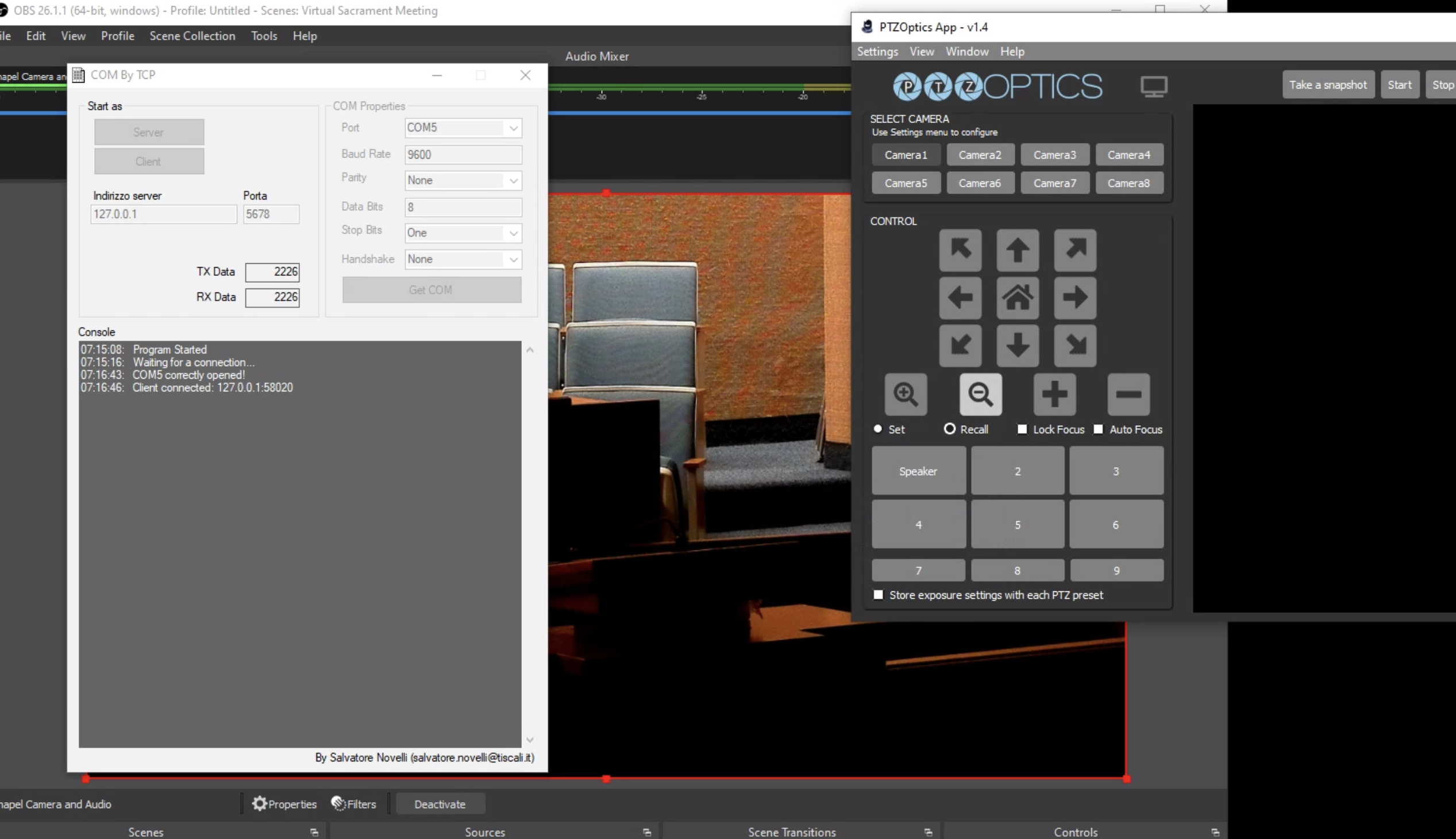
In order to control the camera, I have installed a Serial Communications Port to TCP Server. This acts as a protocol interpreter between the camera control software and the camera itself.

Download the two programs below in order to get started:

1. COM by TCP: https://sourceforge.net/projects/combyt ... e/download
- This software is the intermediate which provides the protocol translation.
- It does not install, but must be run each time as an administrator in order to work.

2. PTZOptics Open Source Control Software:
Installer: https://f.hubspotusercontent20.net/hubf ... %201.4.msi
Manual: https://ptzoptics.com/wp-content/upload ... r-v1.3.pdf

Install the downloaded PTZOptics software with default settings.

Connect your computer to the USB port labeled camera on the AV rack.
ComByTCP does not install and must be run manually as an ADMINISTRATOR each time. To do this, right click on it and select run as administrator. Change the Com Port to whichever the camera is using, ours is on COM5 but it could be any of them, so you might need to verify in device manager.
After selecting the com port, enter "127.0.0.1" as the server, and "5678" as the port.
Everything else remains as default.
Select “Server”, which initiates the software to pass information between the Camera and Control Software.
Open the PTZOptics software and select:
->Settings->Multi Camera Settings
For Camera 1, set to IP Camera, and enter 127.0.0.1 in the box and select OK.
Now select the “camera 1” toggle which initiates communications between the camera and software. You should see new status in COM by TCP reporting "Client connected"
A box may popup and say "Connection Refused", select OK and ignore. (There seems to be more information being passed, but it is unneeded for our purposes.)
Whatever you set, automatically persists after closing the software.

You can now select:
->View->Advanced View and display all available options and then set presets etc.

Hope this helps.
New Member
#9
perrymw2322 wrote:Connect your computer to the USB port labeled camera on the AV rack.
ComByTCP does not install and must be run manually as an ADMINISTRATOR each time. To do this, right click on it and select run as administrator. Change the Com Port to whichever the camera is using, ours is on COM5 but it could be any of them, so you might need to verify in device manager.
After selecting the com port, enter "127.0.0.1" as the server, and "5678" as the port.
Everything else remains as default.
Select “Server”, which initiates the software to pass information between the Camera and Control Software.
Open the PTZOptics software and select:
->Settings->Multi Camera Settings
For Camera 1, set to IP Camera, and enter 127.0.0.1 in the box and select OK.
Now select the “camera 1” toggle which initiates communications between the camera and software. You should see new status in COM by TCP reporting "Client connected"
A box may popup and say "Connection Refused", select OK and ignore. (There seems to be more information being passed, but it is unneeded for our purposes.)
Whatever you set, automatically persists after closing the software.

You can now select:
->View->Advanced View and display all available options and then set presets etc.

Hope this helps.
Our building was just upgraded to HD A/V including a Lumens PTZ camera. The setup appears to be very similar and I'm trying to control the camera using the USB port in the rack connected to a computer. I followed this instructions and it appears to connect but does not control the camera. Checking to see if there are any ideas of what may be the issue. Screenshot attached.
Community Administrator
#10
snihipali99 wrote:Our building was just upgraded to HD A/V including a Lumens PTZ camera. The setup appears to be very similar and I'm trying to control the camera using the USB port in the rack connected to a computer. I followed this instructions and it appears to connect but does not control the camera. Checking to see if there are any ideas of what may be the issue. Screenshot attached.
I'm thinking that you are connected to the USB to serial port converter that's part of the equipment rack, however, that may not have been connected to the camera. At least not correctly. I'd examine the wiring coming from the rack equipment to see if it's even connected.
Have you searched the Help Center? Try doing a Google search and adding "site:churchofjesuschrist.org/help" to the search criteria.

So we can better help you, please edit your Profile to include your general location.
New Member
#11
It appears the PTZOptics App doesn't work with the Lumens PTZ (VC-A52S) camera per this post:
https://help.ptzoptics.com/support/disc ... rl_locale=

Hi Meldryn Mawr,

Unfortunately this solution was designed by PTZOptics for their customers to use with the PTZOptics cameras and was not built to support other manufacturers. There are some other brands that operate in a similar fashion and thus can be used with our control solutions but be aware that PTZOptics is unable to provide support in such instances. One could compare the Lumens API against the PTZOptics API and communication specifications to determine what level of compatibility exists...
Our Stake Center was recently upgraded with Extron A/V and the Lumens PTZ is connected to a Keystone USB to Serial.

We've tried quite a few different apps (whether serial based or TCP/IP using COM over TCP) without result. The Lumen VMS software doesn't work with 'ports' so COM over TCP doesn't work, and their USB software doesn't do anything.

I can send some serial cmds via Putty and I can see ACK so I know it's talking. I'd like see if Jeremy's GoLang option works however we don't have a Raspberry Pi to play with at the moment.

Fortunately, we're not fully dead in the water as the Lumen IR remote works however the contractor did not connect a remote IR sensor in the A/V room. Lots of walking to make an occasional adjustments... :|
New Member
#12
Hi all,

we have bought a PTZ camera recently (https://www.amazon.es/Zowietek-PTZ-Pro- ... 37W2&psc=1)

It comes with an IR control that is pretty unusable (only if you point to the front part). It has an ETH connection, so as an alternative, we can open a browser and configure and operate the camera. This includes PTZ control via buttons, and configuration of presets via a checkbox list.

I see I am not the only one that is willing to control the PTZ movements with an xbox controller using the PC. The PTZ is 15 meters away the PC. Of course the PC does not have any serial input.

I have seen Rocosoft software can be installed on a Win10 PC and you can simply plugin your xbox controller to the PC and control the PTZ camera (via ETH I guess). Is there any simple solution like this available for free?

Some of you provided a Visca controller software (100€) that seems to be able to do this but via a RS-232 cable from PC to PTZ. I don't know how can I use this method if my PC does not have serial ports.

Can you share some experience on this?

Thnaks!
Senior Member
#13
In our Stake building we have used a RS232 to USB adaptor module. Sorry don't have any more details on the adaptor, as the control system was installed by our FM. A Google search should find something suitable.

For control we use the free Visca software, at this link http://www.rnl3c.com/ptzc/ made available to us by a Church member.
New Member
#14
Biggles wrote:In our Stake building we have used a RS232 to USB adaptor module. Sorry don't have any more details on the adaptor, as the control system was installed by our FM. A Google search should find something suitable.

For control we use the free Visca software, at this link http://www.rnl3c.com/ptzc/ made available to us by a Church member.
Thank you so much for the reply! Interesing software. I will test this as soon as possible. I will use a USB to RS-485 adapter + some cabling (you can use ETH internal cables) to conect to the RS-485 port of the camera (2 pins). I cannot use the RS-232 due to the long distance.

I will update the info as I test it.

Bless!
New Member
#15
Hi all,

I can finally control my camera using the same network (PC and PTZ) with an Xbox360 USB controller. PC and PTZ are in the same LAN. The control information is sent to the LAN port of the camera so you don't need any extra cabling. Just HDMI for video and ETH for control (and possibly video too). To do that, I have tested the demo version of http://camcontroller.com/index2.html software (100$).

For this to work, your PTZ has to be compatible with VISCA over IP.

It is possible to make a free version using python with some combination of:

Python examples for reading Xbox360 commands (See it in google caché, it seems no longer active):
http://teachintech.noacsc.org/activity.php?id=251125

Python code for VISCA-over-IP:
https://github.com/misterhay/VISCA-IP-Controller

If any end up combining both feel free to share the program.