Bookmark ideas

12 postsstarted by miller.dj 4,591 viewsoriginal topic

New Member
#1
When you create a bookmark (for example, in the Sunday School study guide or the JFS manual), it creates a bookmark with the name of the chapter. Then, if you update the bookmark, the bookmark's name retains the name of the first chapter, with the new chapter in lighter text below it.

I think it would be helpful, when creating a brand new bookmark, if the name of the book was part of it (like, have the book be the bookmark's main title, and the chapter name in the lighter text below) -- and, when updating the bookmark, just change the name of it completely. (I don't see a need to remember where the bookmark came from, though others' mileage may vary.)

It could also be handy to customize the name of the bookmark, so I could, for example, have one called "nightly reading" to mark my personal reading, and another one called "Sunday School" to keep my place in class reading, and be able to tell which bookmark came from where without confusing the two.

It would also be of some use to be able to delete bookmarks from the list, without having to (download and) open the position in the book and delete it from there.
Senior Member
#2
Lots of things to respond to here, but I think that most, if not all of these, can already be remedied with a little orientation.

With Preview Features turned on, you can right click or press and hold on a bookmark from within the content it resides. This will allow you to use the slide to update feature, rename, and remove the bookmark as you see fit.

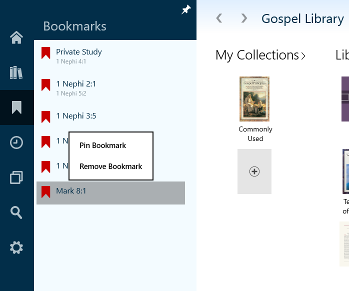
Further, even without Preview Features turned on, by pressing and holding on a bookmark (or right clicking on a bookmark) in the bookmarks pane, you're granted two options: one to pin and one to remove the bookmark. No need to download or to visit it to do so.
Learn more about Gospel Library for Windows 10 Beta at the link below:
https://tech.lds.org/wiki/Gospel_Library_for_Windows_10
New Member
#3
ToManyLetters wrote:Further, even without Preview Features turned on, by pressing and holding on a bookmark (or right clicking on a bookmark) in the bookmarks pane, you're granted two options: one to pin and one to remove the bookmark. No need to download or to visit it to do so.
Strange; I tried holding down on a bookmark, and I never got any options. I wonder what I'm going wrong?
Senior Member
#4
The option doesn't appear until after you let go of your hold. It should look like the screenshot below.
removebookmark.png
removebookmark.png (24.63 KiB) Viewed 3627 times
Learn more about Gospel Library for Windows 10 Beta at the link below:
https://tech.lds.org/wiki/Gospel_Library_for_Windows_10
New Member
#5
Ah, that's why I missed it. Usually, there's a visual cue that you've held a selection long enough (a square that appears around your finger, or the item changes color), but this one lacks any cue.
Member
#6
In the Android version, while reading the scriptures I click on the bookmark tab all of my bookmarks come up (of course). At the top is "Add Bookmark' and immediately below it is "Update Bookmark XX" with the chapter I began reading that session. Any chance of that coming to this app?
CIAO!

Ed Nielsen
Senior Member
#7
This was mentioned in our meetings just this last week. I'll pass on the feedback to the developer working on the bookmarking feature.
Learn more about Gospel Library for Windows 10 Beta at the link below:
https://tech.lds.org/wiki/Gospel_Library_for_Windows_10
Member
#8
ToManyLetters wrote:With Preview Features turned on, you can right click or press and hold on a bookmark from within the content it resides. This will allow you to use the slide to update feature, rename, and remove the bookmark as you see fit.
How do you turn Preview Features on? I don't see it in settings or anywhere else.
CIAO!

Ed Nielsen
Senior Member
#9
Preview Features is only available if you're using the beta version of the application. If you're using the release (production) version of the application, it won't be visible in your settings as an option.

The beta application an be downloaded here:

http://apps.microsoft.com/windows/app/g ... eeec2a95b2
Learn more about Gospel Library for Windows 10 Beta at the link below:
https://tech.lds.org/wiki/Gospel_Library_for_Windows_10
Member
#10
Thank you. I was just hoping for an easier way to update (or rename) bookmarks as I read the scriptures. Currently, as I read a few chapters in the Book of Mormon and update my bookmark to indicate where I currently am, being named where I first created the bookmark with the updated chapter in smaller font below it.

For example, I read from my tablet (Android) stopping at Alma 37 and update my bookmark, which then reads Alma 37. I then read 5 chapters on my Windows 8.1 desktop and update the bookmark. The bookmark now reads Alma 37, with Alma 42:1 in lighter and smaller font below it.

I can go into either my phone or my tablet and rename it so that it reads Alma 42 (with Alma 42:1 in lighter and smaller font below it), but I was hoping to not have to do that.

Beta versions eventually make it to final distribution, so I shall just wait for that.

Thank you for all your hard work. I know it isn't an easy task.
CIAO!

Ed Nielsen
New Member
#11
Is there any way to update a bookmark between chapters as you can in the Android app? I can't seem to figure it out. I can slide to update it within the chapter for different verses, but I can't seem to get it to slide over to the next chapter, or to tap the bookmark button on the side and select Update Bookmark as you do in the Android version.
Senior Member
#12
There are multiple means of updating bookmarks in Gospel Library for Windows. There is the radial menu, as mentioned in the help guide, and also simply dragging and dropping a bookmark from the bookmarks pane into its new place in the content. Additionally, for moving a bookmark within a chapter, you can simply tap on the bookmark’s icon and slide the bookmark ribbon to its new location and tap the checkmark to save its new location.
Learn more about Gospel Library for Windows 10 Beta at the link below:
https://tech.lds.org/wiki/Gospel_Library_for_Windows_10