setting up new FHC printers to scan

13 postsstarted by mpolder 13,761 viewsoriginal topic

New Member
#1
Hi all,

Our FHC has the new Lexmark MX511dhe scanner which I set up successfully to print. Someone brought in an old scanner to use in the center which I proudly denied saying we had a fancy new all-in-one. I then thought I ought to make sure it actually does scan.

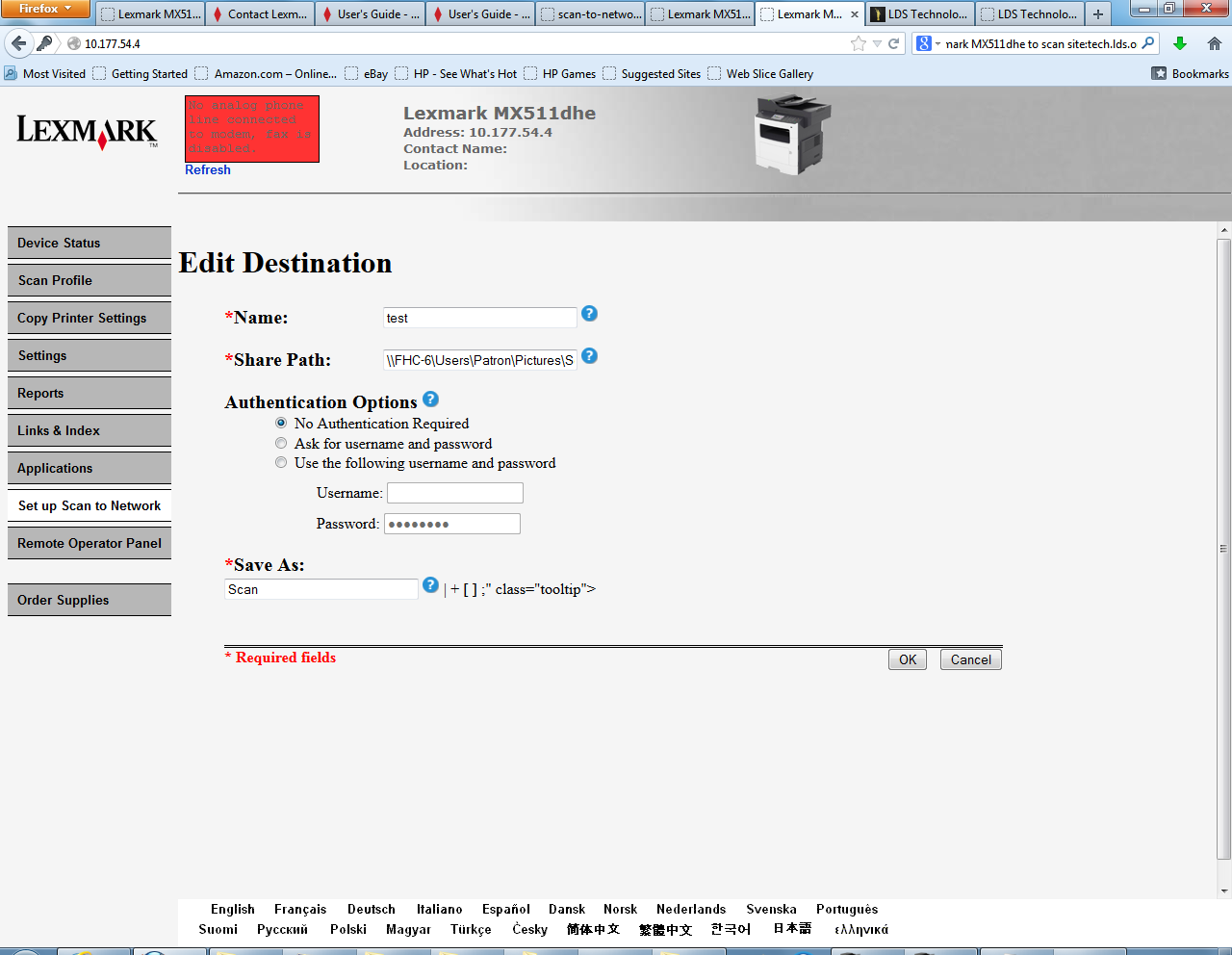
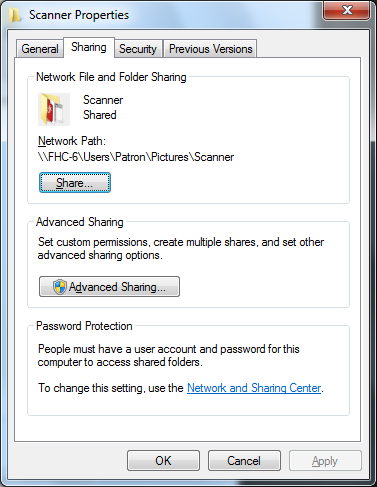
Needless to say it did not. I've spent a half hour trying to set it up. On the scanner home page (the IP address for the scanner) I did set up a profile (see second attachment) and I shared the folder I created using Windows 7 sharing options (see firstattachment).

I can't see the shared folder from other Windows 7 machines on the network (it asks for a password) and the scanner can't connect to it either (though the LCD screen does now show the Scan to Network option).

Has anyone done this successfully?
Capture2.PNG
Capture2.PNG (40.05 KiB)
๐Ÿ“Ž Capture.PNG (129.79 KiB)
Community Administrator
#2
mpolder wrote:I can't see the shared folder from other Windows 7 machines on the network (it asks for a password)
You need to get the authentication worked out. Probably set up what users are allowed to access it and then set that up in the MFP.
Have you searched the Help Center? Try doing a Google search and adding "site:churchofjesuschrist.org/help" to the search criteria.

So we can better help you, please edit your Profile to include your general location.
New Member
#3
You definitely have an authentication problem. I recommend scanning directly to a USB Flash Drive, it will be a lot easier. To do that, simply plug the USB drive in the available port on the MFP and then follow the prompts. If you need further assistance, please call FamilySearch at 866-406-1830.
Clint Broderick
FHC Operations Manager
FamilySearch
Senior Member
#4
I would recommend setting up Scan-to-Email... BroderickC - any thoughts about how we could do that? Seminaries and Institutes have it, FMG's have it, why not wards and stakes?
โ€œA long habit of not thinking a thing wrong, gives it a superficial appearance of being right, and raises at first a formidable outcry in defense of custom.โ€
โ€• Thomas Paine, Common Sense
Community Administrator
#5
JohnShaw wrote:I would recommend setting up Scan-to-Email... BroderickC - any thoughts about how we could do that? Seminaries and Institutes have it, FMG's have it, why not wards and stakes?
The question is what server would be used as the outgoing mail server?
Have you searched the Help Center? Try doing a Google search and adding "site:churchofjesuschrist.org/help" to the search criteria.

So we can better help you, please edit your Profile to include your general location.
New Member
#6
Regarding the Scan-to-Email option:

Stay tuned on this, it is something we're actively pursuing and should have a solution for in the very near future.
Clint Broderick
FHC Operations Manager
FamilySearch
Senior Member
#7
russellhltn wrote:
JohnShaw wrote:I would recommend setting up Scan-to-Email... BroderickC - any thoughts about how we could do that? Seminaries and Institutes have it, FMG's have it, why not wards and stakes?
The question is what server would be used as the outgoing mail server?
There is both an authenticated Internet SMTP server and an Internal unauthenticated SMTP server that can be setup for S&I or FMG.
โ€œA long habit of not thinking a thing wrong, gives it a superficial appearance of being right, and raises at first a formidable outcry in defense of custom.โ€
โ€• Thomas Paine, Common Sense
Community Administrator
#8
JohnShaw wrote:There is both an authenticated Internet SMTP server and an Internal unauthenticated SMTP server that can be setup for S&I or FMG.
I'm not aware of anything the church as provided for this kind of use. Do you have a reference?
Have you searched the Help Center? Try doing a Google search and adding "site:churchofjesuschrist.org/help" to the search criteria.

So we can better help you, please edit your Profile to include your general location.
New Member
#9
It looks like this post has been inactive for a little while, but I thought I might chime in to say that we were able to get our MX511 set up to scan last week. Like the OP, we had issues sharing a single folder in our FHC, so went instead with setting up a folder on each computer and using profiles for scanning. The profiles for the win7 machines used the computer name without a hitch, but the winXP machines required setting a static IP. Now we have scan profiles numbered FHC-01 through FHC-10, and patrons simply select which computer they are working at and the scan goes to a folder on their desktop. I have to clean them out on a weekly basis, but we're working on automating that :)
- Stephen
Senior Member
#10
This is related, but the moderator may decide to use this post to start a new thread.

Last night, I wanted to configure our Lexmark MX511dhe to "Scan to FamilySearch". I searched everywhere for the procedures to install a FamilySearch icon onto the printer's control panel screen. However, I could only find procedures to use that icon after it has been installed.

I tried downloading the 332 MB zip file from Lexmark to upgrade the printer's firmware to the latest version from December 2013. However, all that did was to add a "Scan to PC" icon.

I finally resorted to chatting with a CSM via the FamilySearch Chat. He opened a case for me, and told me that the printer had not yet been registered in their database. What? I know I sent an e-mail to Sandra Friedman at Lexmark and to Family History Center Support when I installed the printer in May 2013. Why didn't that register the printer? The printer is low on toner, so I had to ask FHC Support to force a toner order for me.

Finally, Jerry at FHC Support accessed our printer remotely, and installed the Scan to FamilySearch icon on the printer. It works, but I found it very frustrating to enter my FamilySearch username and password on that tiny control panel screen. Even worse, the password times out after 15-30 seconds, and you have to enter it again.

After all this work, I have recommended to my wife, the FHC director, to configure the MX511dhe as a scanner on each Windows 7 PC in the FHC, and just scan documents and photos directly to the PC, and then upload them to FamilySearch from the PC. Using this method, you can easily use the ADF to scan multiple documents to the PC, and take your sweet time uploading them without having to worry about your connection timing out.
Dana Repouille, Plattsmouth, Nebraska
Senior Member
#11
After much testing and guesswork, I finally figured out how to configure a Lexmark MX511dhe printer as a scanner in Windows 7. It wasn't easy to figure this out, and this may not be the best or the only solution, but it works.

Ensure the current driver for MX510 Series XL is installed.
Open Printers and Devices.
Add Printer.
Add Network Printer.
The printer I want is not listed (even if it is listed).
Select the Lexmark MX510 driver.
Change AutoDetect to Web Services Device.
Enter the static IP address for the printer.
The wizard will connect to the printer and create the new printer object.
Change the name of the new printer if you like.
You may now right-click on the printer and choose one of the scan options.

I wish I could have found instructions like these on a web site, but most of the hits on this subject are on European servers.
Dana Repouille, Plattsmouth, Nebraska
New Member
#12
Hello and thank you for this tread :)

I too was frustrated only to be able to scan to FamilySearch: many old photographs are elipital or should by other reason be cropped (old certificates have also odd measurements), the tiny keyboard on the Lexmark had German keys (I have now changed it to Danish), the automatic feeder could not be used etc..

My way to set up the local scans is:
a new folder is made on the pc "desktop" and rightclicked; properties, sharing tap, share button (not advanced). Copy the networkpath..
an internet browser is pointed to the url, that is listed at the upper left corner of the Lexmark display.
set up scan to network, fill a name (description of the computer, like FHC-01 or "pc at telephone") and in the next field paste the networkpath for the folder.
now it did not work without approvals (I'm not sure of the English word :)) -but works if the last option with username and password is filled with the name and pass for the pc..

Now some questions:
1) when scanning to pc, how to avoid a .xml-file named as the scanned picture?
2) also: is it possible to save the settings, so we should not allways choose .tiff (instead of .pdf), resoultion 300 dpi, auto size etc when scanning??

Greetings from Copenhagen, Denmark
-Henrik Hansen
New Member
#13
update:
above question 1): now there is no longer created an .XML-file as well as a .tif or .jpg, when scanning a picture (solution: unknown)

another question:
3) I have also tried to make an icon on each pc for rightclicking, so the scanner works more like descibed in previous post by drepouille (the section can be previewed and arranged before scanning):
the new problem is an added icon on the Lexmark display "Scan to computer" -how to get rid of that icon??
The Lexmark icon for network scans started from the Lexmark is now on another 'page' and the icon I want to get rid of has the computernames, that are not so easy to figure out for others..