Blurred view when copying into a word document.

9 postsstarted by tate.darrell5 4,457 viewsoriginal topic

New Member
#1
I am my ward's newsletter editor. I put the ward/stake calendar in the newsletter each month. Since the change, I've not been able to copy and paste the calendar into my Word document. I got around this problem by downloading the calendar from the church's website as a pdf document and then clicking edit in Adobe Reader and then I "take a snapshot" of the calendar and paste that into the Word document. The problem with this is that the calendar appears blurry after pasting it into my Word document. I have looked at doing the newsletter with the newsletter feature on the church's website but it is too difficult to put one document together from several different organizations within the ward with the church's newsletter feature. I've also tried copying my newsletter into the newsletter feature here and it doesn't separate the different articles but appears as one large several page article. For now, I prefer to use Microsoft Word to create and send my newsletter. It would be great if I could get a calendar that isn't blurry included. What do you suggest?

Community Administrator
#2
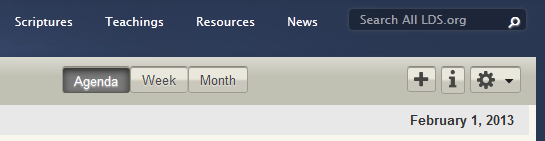
I'm not sure how specific your requirements are for how the calendar should look, but one option might be to use the Agenda view, then copy and paste the month's events from that view into Word. Then you can do a bit of cleanup and you'll have nice clean text -- no images to be blurry.
Questions that can benefit the larger community should be asked in a public forum, not a private message.
New Member
#3
Thanks, I'll try that. Where do I find the option to put the calendar in agenda format?
Community Administrator
#4
The Agenda view button is right next to the Week and Month view buttons on the top middle of the main calendar display.
agenda1.png
agenda1.png (13.35 KiB) Viewed 4428 times
Questions that can benefit the larger community should be asked in a public forum, not a private message.
New Member
#5
Thanks again! I'll give that a try. By the way, when I said the calendar looks blurry, it is pretty much unreadable. Hopefully your suggestion fixes my problem. Have a good one!
New Member
#6
You could always use Lightscreen http://lightscreen.sourceforge.net/ to do a nice and clean screenshot.
New Member
#7
Thanks for your suggestion! I will give lightsource a try.
New Member
#8
In Word you can right click to see other ways to paste. You should see a "capital A" icon in the list under paste options. That will paste the text without any formatting. It will also leave out all the form objects that Word thinks could be security issues.
Community Moderators
#9
The original PDF calendar you download has a high resolution and won't get blurry when it's resized or printed. But when you take a screenshot, the screenshot will get blurry if it's expanded or printed because it has a low resolution. Word allows you to embed a PDF file (one page at a time) directly as if it were a regular image file.

On a Mac you can do this through [ Insert > Photo > Picture from File... ] or by dragging it into the document from the desktop.
Samuel Bradshaw • If you desire to serve God, you are called to the work.